Guide
How to Pair, Fix, and Use Your TCL Fire TV Remote
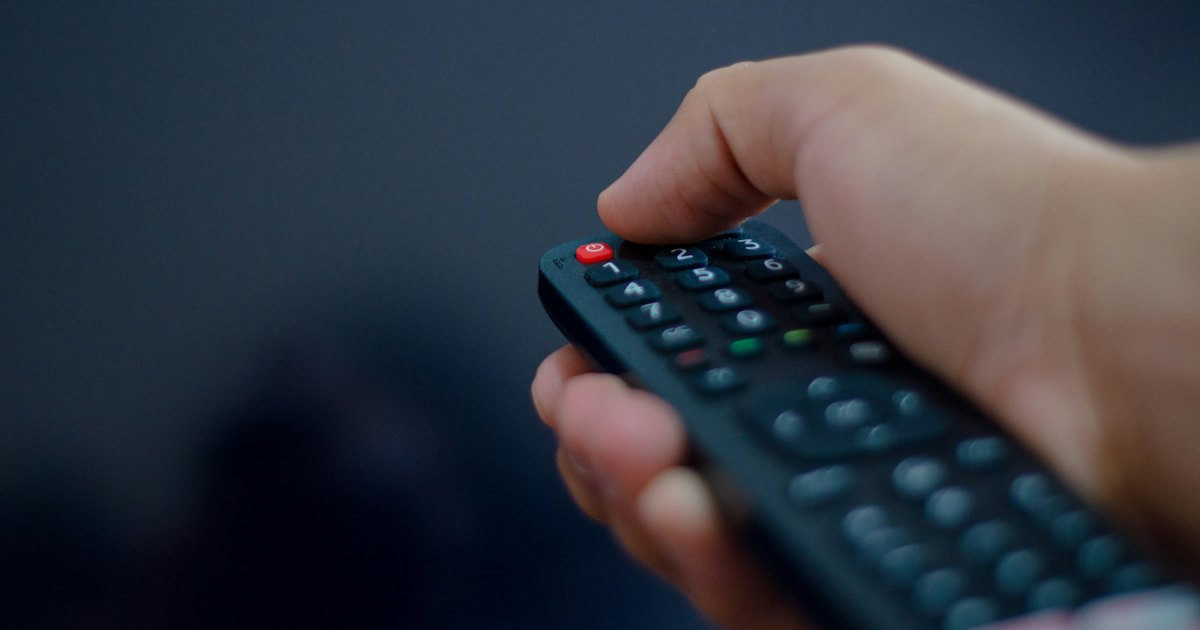
A TCL Fire TV remote is Amazon's Alexa Voice Remote, and you re-pair it by holding the Home button for 10 seconds while the TV is on. To use your phone instead, install the free Amazon Fire TV app and connect it over the same Wi-Fi. Fresh batteries fix most dead remotes.
On this page
I set up a TCL 4-Series Fire TV for my parents, and its Alexa Voice Remote is the same clicker Amazon ships with a Fire TV Stick — Bluetooth, a mic, and a round nav ring. My honest take: the Bluetooth pairing beats the old line-of-sight IR clickers, so it works from across the room and even at an angle. The catch I hit fast: Amazon's phone app has no volume buttons for the built-in speakers, so I still keep the physical remote around just for volume.
This guide covers the TCL Fire TV remote end to end — re-pairing the physical one, running the free phone app, and what to do when the set turns out not to be a Fire TV at all. First, though, confirm which platform you own, because that decides everything below. Not sure which remote you're even holding? Our which-TCL-remote guide walks the model codes, and the TCL remote finder tool checks your set in a few taps.
The 30-second test
Before you re-pair or download anything, make sure your TCL really runs Fire TV. Plenty of people call any streaming TV a "Fire TV," but most TCL sets in the US run Roku or Google TV — and the remote and app are completely different. A 10-second glance at the home screen settles it.
- 1Rows of apps with an Alexa (mic) button on the remote? It's a Fire TV — Methods 1 and 2 below are yours.
- 2A purple grid of channel tiles? It's a Roku TV — skip to Method 3, the Roku app or a universal app runs it.
- 3A wide 'For you' banner across the top? It's a Google TV — Method 3 covers the Google TV app and a universal app.
Smart TV Remote
Turns out your TCL runs Roku or Google TV, not Fire TV?
Smart TV Remote pairs over Wi-Fi — no account, free.

Smart TV Remote
Free · iOS 16+



Method 1: Re-pair the Alexa Voice Remote
The remote in a TCL Fire TV box is the Amazon Alexa Voice Remote, and it talks to the TV over Bluetooth, not infrared. When it stops responding, the usual fix is a fresh re-pair — no menu diving required. Do this with the TV on and the remote a few feet away.
- 1Turn the TV on and reach the Fire TV home screen. Power the TCL on with the button under the panel or a working second remote, and wait for the Fire TV home screen. Pairing only works while the set is on and awake — not from standby — so don't start until the rows of apps are showing.
- 2Press and hold the Home button for 10 seconds. Point the Alexa Voice Remote at the screen and hold the Home button — the house icon — for a full 10 seconds. Fire TV puts the remote into Bluetooth discovery and starts searching for it. Let go once the screen reacts.
- 3Wait for the on-screen confirmation. A message says the remote is connected, or the small light near the top of the remote stops flashing. This takes a few seconds. If nothing happens, release the button and hold Home again for another full 10 seconds.
- 4Still stuck? Reseat the batteries and power-cycle. Pull the batteries, unplug the TV at the wall for 60 seconds, plug it back in, drop in fresh batteries, then repeat the Home-button hold. A cold restart clears a jammed Bluetooth connection more reliably than anything else.
Catch: because it's Bluetooth, line-of-sight isn't the problem — so a remote that won't pair after a battery swap and a power-cycle is usually a hardware fault. A Fire TV pairs up to seven remotes, so a cheap Amazon replacement links right alongside it. If a few buttons work but not others, our TCL remote not working checklist sorts a dying remote from a TV-side fault.
Method 2: Use the free Amazon Fire TV app
If the physical remote is lost or dead, Amazon's own Fire TV app is the fastest fill-in, and it's free on both iPhone and Android. It gives you a D-pad, an on-screen keyboard, Alexa voice, and playback keys — the same app Amazon publishes for Fire TV Sticks. Amazon documents it on its Fire TV support pages.
- 1Install the free Amazon Fire TV app from the App Store or Google Play on your phone.
- 2Put your phone on the same Wi-Fi network as the TCL Fire TV — the app reaches it over the network, not infrared.
- 3Open the app and sign in with the same Amazon account that's on the TV, then tap your TCL in the device list.
- 4Enter the 4-digit code shown on the TV screen. The D-pad, keyboard, and voice all work once it connects.
Catch: the app needs the same Amazon account that's signed in on the TV, and it usually has no volume buttons for a built-in Fire TV's speakers — that stays on the physical remote or HDMI-CEC. If the app never finds the TV, confirm both are on the same Wi-Fi band and, on an iPhone, allow the Local Network prompt and turn off any VPN.
Smart TV Remote
Your TCL isn't a Fire TV after all — it's a Roku or Google TV?
One free app covers it — Smart TV Remote, no sign-in.
Smart TV Remote
Free · iOS 16+
Method 3: A Roku or Google TV TCL instead
If the 30-second test showed a purple Roku grid or a Google TV banner, your set isn't a Fire TV — and Amazon's app won't control it. For those TCLs, a no-account universal app is the free phone remote. Smart TV Remote finds a TCL Roku or Google TV on your Wi-Fi and connects with no sign-in, so one download covers a mixed household. It does not drive a genuine Fire TV set — use the Amazon app above for that.
- 1Confirm the platform: a purple tile grid means Roku, a 'For you' banner means Google TV.
- 2Download Smart TV Remote free from the App Store or Google Play on your phone or tablet.
- 3Put your phone on the same Wi-Fi as the TCL, open the app, and let it scan — tap your set in the list.
- 4Use the D-pad, OK, volume, playback, and the phone keyboard for fast search. No code or account needed.
Honest note: the official platform apps work too — the Roku and Google TV apps give voice and private listening but each needs a sign-in and only drives its own platform. A universal app trades those extras for zero accounts. For volume on a Roku or Google TV TCL, the app controls the built-in speakers directly.
Fix 1: When the remote or app won't respond
Whether it's the plastic remote or the phone app that's gone quiet, the causes are short and the same for most Fire TV sets. Work through them in order before you decide the remote is dead.
- 1Fresh batteries first: a weak pair mimics a broken remote and won't hold a Bluetooth pairing. Swap them before anything else.
- 2Re-pair the remote: hold Home for 10 seconds with the TV on, as in Method 1. This alone fixes most 'dead' Alexa Voice Remotes.
- 3Power-cycle the TV: unplug it at the wall for 60 seconds, then plug back in. A cold restart clears a stuck Bluetooth stack and a frozen app connection alike.
- 4For the app: confirm the phone and TV share the same Wi-Fi, force-close the app, and re-launch. Re-enter the on-screen code if it asks.
Honest note: if no remote and no app can reach the TV, the fault is often the set's Bluetooth or network radio, not the remote — a factory reset from the TV's own button menu is the last software step before service. Pairing a second remote to confirm is the cleanest test.
Which remote fits your TCL?
The right remote depends on which platform your TCL runs and whether you want the physical clicker or your phone. Here's how the three routes compare on the things that matter.
| What you get | Alexa Voice Remote | Amazon Fire TV app | Universal app |
|---|---|---|---|
| Controls a true Fire TV | Yes | Yes | No |
| Controls a Roku / Google TV TCL | No | No | Yes |
| Needs line-of-sight | No (Bluetooth) | No (Wi-Fi) | No (Wi-Fi) |
| Account required | None | Amazon account | None |
| Volume control | Yes | Usually no | Yes |
| Voice / Alexa | Yes | Yes | Varies |
| Cost | In the box | Free | Free |
My pick for most people: keep the physical remote that came with the set for volume, and add the matching phone app as the backup that never slips into the couch. Which app depends on the platform — the Amazon Fire TV app for a real Fire TV, or a universal app for a Roku or Google TV TCL.
Frequently Asked Questions
How do I pair my TCL Fire TV remote?
Turn the TV on, wait for the Fire TV home screen, then point the Alexa Voice Remote at the set and hold the Home button for about 10 seconds. Fire TV pairs it over Bluetooth and shows a confirmation. If it doesn't take, reseat the batteries, unplug the TV for 60 seconds, and try the hold again.
Does the TCL Fire TV remote have a phone app?
Yes. Amazon's free Fire TV app for iPhone and Android is the phone remote for a TCL Fire TV. Install it, join the same Wi-Fi as the TV, sign in with the Amazon account on the set, then enter the 4-digit code it shows. You get a D-pad, keyboard, Alexa voice, and playback controls.
Why is my TCL Fire TV remote not working?
Most often it's dead batteries or a dropped Bluetooth link, not a broken remote. Swap in fresh batteries first, then re-pair by holding Home for 10 seconds. If buttons still do nothing, unplug the TV for 60 seconds to reset it. A remote that never responds after all that is likely faulty and needs replacing.
Can I control a TCL Fire TV without the remote?
Yes. Install the free Amazon Fire TV app on your phone and connect it over the same Wi-Fi as the TV — it becomes a full remote in a minute. You can also power the set on and open menus with the physical button under the panel, and any HDMI-CEC device's remote can drive basic playback.
Does the Amazon Fire TV app control the volume?
Often not. The Fire TV app usually has no dedicated volume buttons for built-in Fire TV sets, because volume runs through the physical remote's infrared or HDMI-CEC. Use the Alexa Voice Remote for volume, or a soundbar's own remote. The app still handles navigation, search, voice, and playback fine.
Is my TCL actually a Fire TV or a Roku TV?
Check the home screen. A Fire TV shows horizontal rows of apps and an Alexa button on the remote. A Roku TV shows a purple grid of channel tiles. A Google TV shows a wide 'For you' banner. The platform decides which app and remote you need, so confirm this before you download anything.