Guide
How to Pair a TCL Remote to Your TV
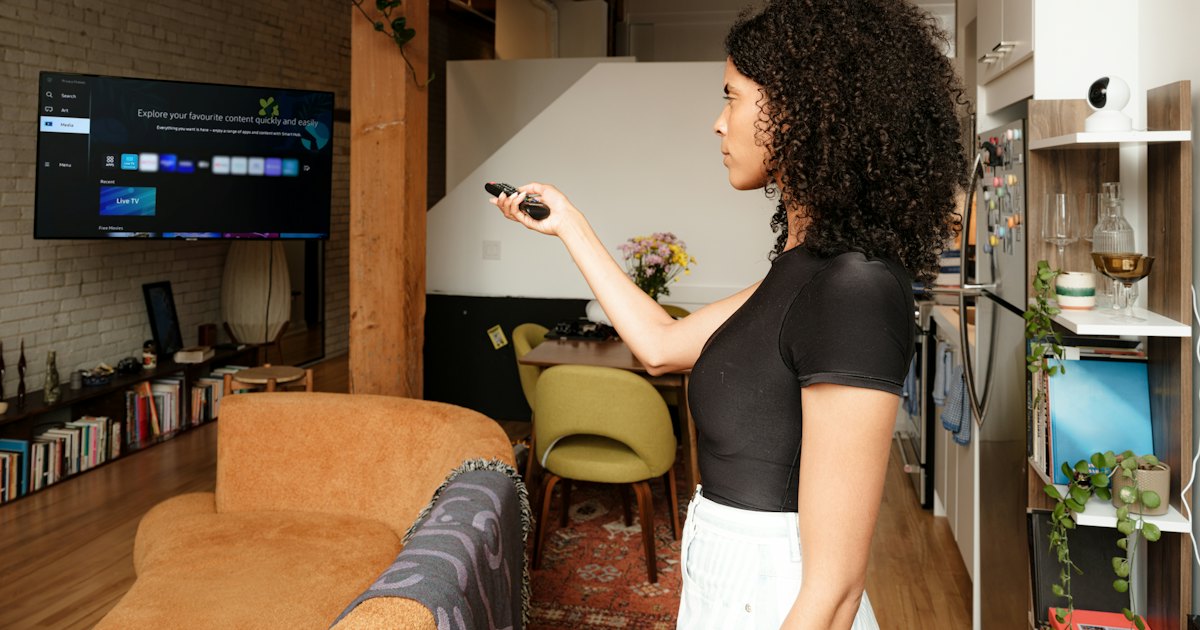
To pair a TCL remote to your TV, hold its pairing button until the light flashes. On a TCL Roku voice remote, press and hold the button inside the battery compartment for 3 to 5 seconds. On a TCL Google TV remote, hold Back and Home together instead. The TV then shows a “Pairing…” message and confirms with a checkmark.
On this page
I've paired a pile of TCL remotes across two platforms — a 55-inch TCL 4-Series Roku TV (55S451) with the enhanced voice remote, and a TCL 5-Series Google TV (55S546) with its Bluetooth remote. My honest take: the Roku voice remote is the fussiest, because the pairing button hides in the battery bay and a half-dead battery quietly blocks the handshake. Fresh cells fix it more often than any button-holding does.
Before anything else, work out which remote you actually have. A TCL TV ships one of three, and only two of them pair at all. Guess wrong and you'll spend ten minutes holding a button on a remote that was never meant to pair. The 30-second test sorts it.
The 30-second test
Look at the remote in your hand and answer one question. The right method depends entirely on which of these you're holding.
- 1Has a microphone or voice button and a purple/pink pairing button in the battery bay? That's a TCL Roku voice remote — Method 1.
- 2Has a Google Assistant mic, a round D-pad, and Netflix/YouTube buttons? That's a TCL Google TV remote, and it pairs over Bluetooth — Method 2.
- 3A plain clicker with no mic, no pairing button, and lots of numbered buttons? That's an IR remote — it doesn't pair at all — Method 3.
- 4The remote flashes or the TV finds it, but it still won't finish? Go to Fix 4.
Still not sure? Our guide to which TCL remote you have walks through the model code on the back and the IR-vs-voice tell.
Smart TV Remote
Pairing needs a TV that's on and menus you can reach — hard when the remote's the thing that's broken. You can run the TV from your phone in the meantime.
Smart TV Remote puts a full D-pad and Home button on your phone over Wi-Fi — free, no account, no pairing button.

Smart TV Remote
Free · iOS 16+



Method 1: Pair a TCL Roku voice remote
This is the common case. The TCL Roku enhanced (voice) remote pairs over a private radio link, not IR, so it doesn't need line of sight — but it does need a pairing handshake. Most re-pair in under a minute once the batteries are fresh.
- 1Put fresh batteries in the remote. Open the battery cover on the back of the remote and drop in fresh AA or AAA cells. A weak battery is the number-one reason pairing fails or drops, so start here even if the old ones seem fine.
- 2Turn the TV on and wait for the Home screen. The remote pairs to a TV that's already awake. If the remote is dead, use the physical power button on the back or bottom of the set to switch it on. Let the Roku Home screen finish loading before you pair.
- 3Press and hold the pairing button. Look inside the battery compartment (or just below it) for a small pairing button. Press and hold it for 3 to 5 seconds until the status light on the remote starts flashing. That flash means it's in pairing mode.
- 4Wait for the on-screen pairing message. The TV shows “Pairing remote…” and then a checkmark, usually within 30 seconds. Once it confirms, the remote controls power, volume, navigation, and voice search. If nothing appears, jump to Fix 4.
A voice remote also auto-pairs the first time you power up a brand-new TV, so a factory-fresh set often needs no button at all. Roku's own remote-pairing walkthrough has the pictures if you want to double-check the button location.
When it won't work: if the light never flashes, the batteries are dead or the button is stuck — see Fix 4. If your remote has no pairing button at all, it's a standard IR clicker, so skip to Method 3. On a TCL Roku TV specifically — including replacement and player remotes — our pair-a-Roku-remote-to-a-TCL-TV guide goes deeper.
Method 2: Pair a TCL Google TV remote
TCL Google TV (and older Android TV) sets use a Bluetooth voice remote. It pairs with a button combo rather than a hidden pairing button. Keep the remote within a few feet of the TV while you do this.
- 1Wake the TV and wait for the Home screen. If the remote is dead, use the power button on the back or bottom of the set to turn it on first.
- 2Hold Back and Home together for about five seconds, until the light on the remote starts blinking. That blink is pairing mode. On some TCL models the combo is Back plus the volume-down key instead.
- 3Watch for the on-screen prompt. The TV shows “Searching for accessories” or a pairing screen — pick your remote from the list to connect it.
- 4Confirm control. Once it links, test the D-pad and volume. You can also re-pair any time from Settings > Remotes & Accessories > Pair remote.
Combo not working? TCL prints the exact pairing keys in the box guide, and the general steps live on TCL's support site. For the full Google TV remote lifecycle — fixing, programming TV power, replacing — see our TCL Google TV remote guide.
Smart TV Remote
No luck getting the combo to catch? You still need to reach Settings > Remotes & Accessories to re-pair — and that takes a working remote.
Smart TV Remote drives those menus from your phone so you can pair, forget, and re-add a remote hands-free.
Smart TV Remote
Free · iOS 16+
Method 3: Use an IR clicker (no pairing needed)
Here's the honest bit. A standard infrared TCL remote — the plain clicker with number buttons and no mic — never pairs. It sends a beam of light to the sensor on the front of the TV, so there's no handshake to complete. If you're hunting for a pairing button on one of these, you won't find it.
- 1Point it at the TV. IR needs a clear line of sight to the sensor, usually bottom-center or bottom-right of the panel. Stand within about 15 feet.
- 2Check it's really IR: no microphone, no voice button, no pairing button in the battery bay. Lots of numbered buttons is another tell.
- 3Test the emitter: point the remote at your phone's camera and press a button. If you see a faint light blink on the camera screen, the remote is sending — it was never a pairing problem.
If the IR remote still does nothing after fresh batteries and a clear aim, the sensor or the remote may be faulty — our remote-not-working guide covers the sensor test and next steps. Swapping in a universal clicker instead? You program that with a code, not a pairing button — our TCL Roku TV remote code guide has the steps.
Fix 4: TCL remote won't pair
The remote flashes or the TV sees it, but pairing never sticks. Work through these by symptom — almost every failure is batteries, distance, or a stuck link, not a broken remote.
- 1Light never flashes: the batteries are too weak to power the radio. Fit a fresh set — this fixes most no-pair cases on both Roku and Google TV remotes.
- 2TV never shows a pairing message: you're too far or something's blocking it. Pair within a few feet, with clear space between the remote and the TV.
- 3It flashes but won't connect: reset the handshake. Pull the batteries, unplug the TV for 60 seconds, plug it back in, reinsert the batteries, and hold the pairing button again.
- 4Roku still stuck: restart the TV under Settings > System > Power > System restart, wait for the Home screen, then re-pair from step 3 of Method 1.
- 5Google TV won't find it: go to Settings > Remotes & Accessories, forget the old remote entry, then run Pair remote fresh.
If none of that works, the remote is likely dead — but you don't have to wait for a replacement to use the TV. Install Smart TV Remote on your phone, join the same Wi-Fi as the TV, and tap Connect. You get an on-screen D-pad, Home button, volume, and a keyboard — enough to run the set fully while you sort out the hardware remote or order a new one.
The app connects over the network, so there's no pairing button to press — but the TV must already be on and on Wi-Fi. If it won't power on, fix that first.
Which remote pairs how
Three remotes, three completely different answers. Match yours to the row and you'll know the exact button to hold — or that there's nothing to pair at all.
| Remote type | Pairs how | Button or combo | Section |
|---|---|---|---|
| Roku voice / enhanced remote | Private radio link | Pairing button in battery bay, 3–5s | Method 1 |
| Google TV voice remote | Bluetooth | Back + Home held together | Method 2 |
| Standard IR clicker | No pairing — line of sight | None | Method 3 |
| Phone app | Wi-Fi network | Install and tap Connect | Fix 4 |
My advice: fit fresh batteries before you try any pairing, whatever the remote. Weak cells cause more failed pairings than any wrong button. And if you're holding a plain IR clicker, stop looking for a pairing button — point, press, and check the full Roku remote guide if the buttons still don't respond.
Frequently Asked Questions
How do I pair my TCL remote to my TV?
Hold the pairing button on the remote until its light flashes. On a TCL Roku voice remote, that button sits in the battery compartment — hold it 3 to 5 seconds. On a TCL Google TV remote, hold Back and Home together instead. Watch the TV for a “Pairing…” message, then a checkmark to confirm.
Where is the pairing button on a TCL Roku remote?
It's inside the battery compartment, usually below the batteries. Slide off the back cover and look for a small round button, sometimes marked with a pairing icon. Hold it for 3 to 5 seconds until the light on the front of the remote flashes. Standard IR TCL Roku remotes have no such button — those don't pair.
How do I pair a TCL Google TV remote?
Hold the Back button and the Home button together for about five seconds, until the remote's light blinks. The TV shows a “Searching for accessories” or pairing prompt — pick the remote to finish. Some TCL Google TV models use Back plus the volume-down key instead; the combo is printed in the box guide.
Why won't my TCL remote pair?
Weak batteries are the usual cause, so swap them first. Then pair within a few feet of the TV, with nothing blocking it. If the remote still won't enter pairing mode, unplug the TV for 60 seconds, plug it back in, and try again. A remote that never flashes its light may be faulty.
Do I need to pair a TCL IR remote?
No. A standard infrared (IR) TCL remote — the basic clicker with no mic or voice button — never pairs. It sends light signals, so you just point it at the TV and press. If a “pairing” guide isn't working, check whether your remote is actually IR; there's nothing to sync.
Can I control my TCL TV without pairing a remote?
Yes. A free phone app controls a TCL TV over Wi-Fi, no pairing button needed — both devices just join the same network. It's the fastest fallback while a remote is dead or being replaced. Install Smart TV Remote, tap Connect, and pick your TV to get an on-screen D-pad and keyboard.