Guide
TCL Google TV Remote: How to Pair, Fix, or Replace It
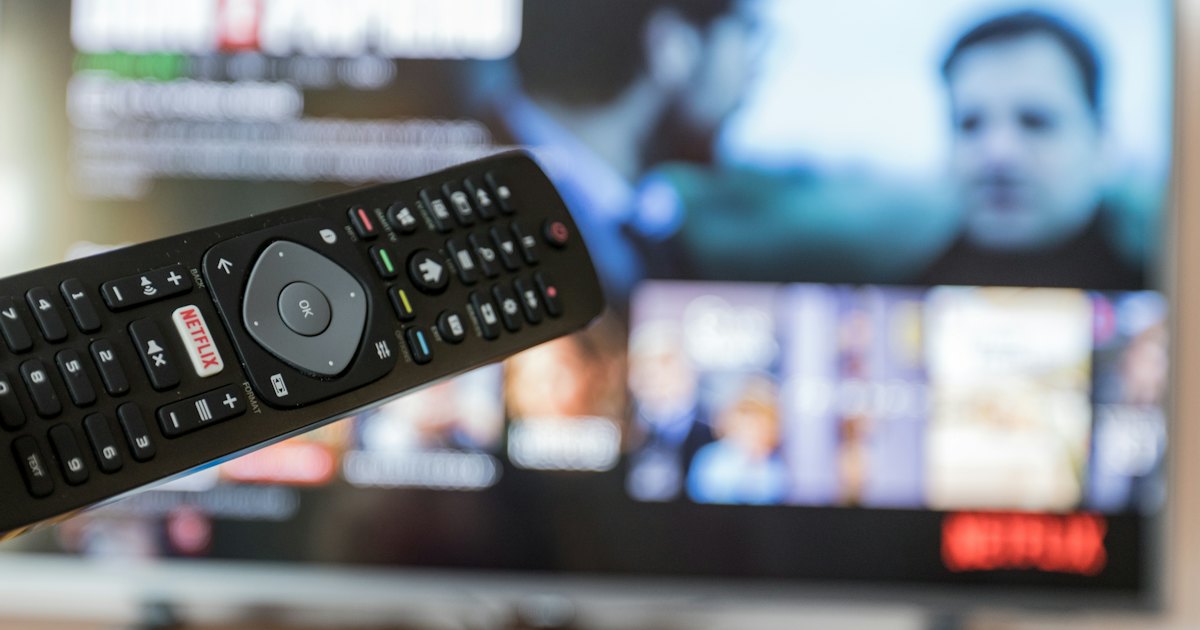
The TCL Google TV remote is the Bluetooth voice remote that ships with TCL's Google TV sets. To pair it, hold the Back and Home buttons together until the LED flashes, then follow the on-screen prompt. It uses infrared for TV power and volume, so fresh batteries still matter even over Bluetooth.
On this page
I've set up the voice remote on a TCL Q6 (Q650G) Google TV and an older 4-Series Google TV, and they pair the same way. My honest take: it's a good remote once it's connected — the mic button and app shortcuts are genuinely handy — but the Bluetooth link drops more often than an old IR clicker ever did. The one thing that threw me: the model code isn't on the front. It's printed inside the battery compartment, and you need it to buy the right replacement.
This guide covers the physical remote in the box — pairing it, what each button does, fixing it, and replacing it. If you just want to skip the hardware and run the remote from your phone, that's Method 4. Got an older set on classic Android TV instead of the Google TV skin? The TCL Android TV remote guide pairs and replaces that one. Otherwise, start with the 30-second test to land on the right fix.
The 30-second test
Press any button and watch the small LED near the top of the remote. What it does tells you which section you need — don't start re-pairing before you know it's not just batteries.
- 1LED doesn't light at all: it's the batteries or the remote itself. Swap in fresh AAA first, then see Method 2 if it's still dark.
- 2LED lights, but the TV ignores the D-pad: the Bluetooth pair has dropped. Re-pair it with Method 1 — this is the most common case.
- 3D-pad works, but power or volume don't: those travel by infrared, not Bluetooth. Set up the IR buttons with Method 3.
- 4No remote in hand at all: don't wait for a replacement to ship — put the remote on your phone now with Method 4.
Smart TV Remote
No remote in hand, or stuck mid-pair with a blinking LED?
Smart TV Remote gives you a full D-pad, voice, and keyboard on your phone over Wi-Fi — free, no account.

Smart TV Remote
Free · iOS 16+



Method 1: How to pair a TCL Google TV remote
The TCL Google TV remote talks to the TV over Bluetooth for menus, the D-pad, and voice. If it lights up but nothing moves on screen, the pair has dropped and you just need to re-pair it. This is a two-button hold, and it takes under a minute.
- 1Put fresh batteries in and wake the remote. Open the battery door on the back, fit two fresh AAA batteries the right way round, and press any button. A dead battery mimics a pairing fault, so rule it out first before you try anything else.
- 2Hold Back and Home together. Point the remote at the TV and press the Back button and the Home button at the same time. Keep both held for about five seconds until the small LED near the top of the remote starts to blink.
- 3Wait for the on-screen pairing prompt. The TCL Google TV shows a “Searching for remote” or “Pairing” message. Let it find the remote — this takes a few seconds. When it connects, the LED stops blinking and stays off.
- 4Test the D-pad and voice button. Move around the Home screen with the circular D-pad, then press the mic button and speak. If both respond, the Bluetooth pair is done. If the LED never blinked, your model may use a different combo — see the caveat below.
Catch: not every TCL remote uses the same combo. If Back + Home never makes the LED blink, try holding Back plus the button directly below the power key, or check the model code inside the battery door against TCL's support site. If you're not sure this is even a Google TV remote, our how to pair a TCL remote to your TV guide sorts the Roku, Google TV, and IR remotes apart first.
Method 2: TCL Google TV remote not working
A TCL Google TV remote usually fails for one of three reasons: weak batteries, a dropped Bluetooth link, or a TV that needs a restart. Work through them in that order — each takes a minute, and most people are back in business by step two.
- 1Replace both AAA batteries as a pair, even if the old ones seem fine. A dim or laggy remote is almost always a fading battery, and mixing an old cell with a new one keeps it flaky.
- 2Re-pair over Bluetooth (Method 1). If the LED lights but the D-pad does nothing, the pair dropped — re-pairing restores it without touching any settings.
- 3Restart the TV. Unplug it from the wall for 30 seconds, plug it back in, and let it boot fully. This clears a stuck Bluetooth stack that no button press will fix.
- 4Try the remote up close and unobstructed. For the power and volume keys, make sure nothing blocks the front of the TV — those still rely on line-of-sight infrared.
Catch: if the remote works close up but not across the room, that's a weak battery, not a Bluetooth fault — Bluetooth range doesn't taper like that. And if nothing here helps, the remote may simply be faulty; jump to Method 4 to keep controlling the TV while a replacement ships. Our full TCL remote not working guide has the deeper fault tree.
Smart TV Remote
Waiting on batteries or a new remote before you can watch anything?
Smart TV Remote controls a TCL Google TV from your phone right now — free, no account, no IR needed.
Smart TV Remote
Free · iOS 16+
Method 3: Set up power and volume on the remote
Here's the part that confuses people: the D-pad and voice run over Bluetooth, but power and volume are sent by infrared straight to the TV. On most TCL Google TVs this is configured out of the box. If those keys do nothing, you set them up in the menu.
- 1Open Settings from the Home screen, then go to Remotes & Accessories.
- 2Choose Set up remote buttons (some models label it “Remote control setup” or “IR setup”).
- 3Follow the on-screen prompts to confirm power and volume. The TV walks you through pressing each key so it can map the IR codes.
- 4Test volume up and down, then power off and on. Point the remote at the TV — infrared needs line of sight, unlike the Bluetooth D-pad.
Catch: this only controls the TV's own speakers. If your sound goes through a soundbar or receiver over HDMI-ARC, volume may route there instead, and you'll set that device's volume separately or via HDMI-CEC.
Method 4: Replace it, or control the TV from your phone
If the remote is lost or truly dead, you have two routes: buy a matching replacement, or put the remote on your phone. I do both — the app for right now, a spare remote for the couch. The phone option is free and works in the next minute.
For the app, install Smart TV Remote on your iPhone, join the same Wi-Fi as the TV, and pair it — you get a D-pad, the mic for voice search, and a real keyboard for typing into search boxes, no IR line-of-sight required. Google's own free Google TV app does the same for Google TV models; the difference is that a universal app also drives a TCL Roku TV if your house mixes platforms. Either way, your phone and TV must share the same network.
For a physical replacement, read the model code from inside the battery compartment — a code like RC902V or RC903V — and order that exact remote. A same-model remote keeps the voice mic and app-shortcut buttons working; a random universal clicker often loses those. A generic IR remote can cover power and volume, but not the Bluetooth D-pad or voice.
What every button does
The TCL Google TV remote is deliberately sparse. Here's what each control does, and whether it works over Bluetooth or infrared — which tells you where to point it.
| Button | What it does | Signal |
|---|---|---|
| D-pad + OK | Move around menus and select | Bluetooth |
| Google Assistant mic | Voice search and commands | Bluetooth |
| Back | Go back one screen | Bluetooth |
| Home | Jump to the Google TV Home screen | Bluetooth |
| App shortcuts (YouTube, Netflix…) | Open that app directly | Bluetooth |
| Power | Turn the TV on and off | Infrared |
| Volume rocker | Raise or lower TV volume | Infrared |
| Mute | Silence the TV | Infrared |
Notice the split: everything you navigate with runs over Bluetooth, so you don't need to aim it. Only power, volume, and mute use infrared, which is why those — and only those — need a clear line of sight to the TV.
Which replacement fits you
If the original is gone, these are your realistic options. Match what you actually need — full voice control, or just power and channel changes — to the one that delivers it.
| Option | Cost | Voice + D-pad? | Best for |
|---|---|---|---|
| Phone app (Smart TV Remote / Google TV) | Free | Yes | Right now, or as a permanent backup |
| Same-model TCL remote (RC902V etc.) | $$ | Yes | A true like-for-like replacement |
| Generic universal remote | $ | Power/volume only | Basic control, no voice or menus |
My advice: install the phone app regardless — it costs nothing and saves you the next time the remote wanders under a cushion. If you want a physical remote too, buy the exact model code, not a generic clicker, so you keep voice and the app shortcuts. You can also control the TV entirely from your phone if you'd rather not replace the hardware at all.
Frequently Asked Questions
How do I pair a TCL Google TV remote?
Hold the Back button and the Home button together for about five seconds, until the LED near the top of the remote blinks. The TCL Google TV then shows a pairing prompt and connects over Bluetooth. Put fresh AAA batteries in first — a weak battery is the most common reason pairing fails.
Why is my TCL Google TV remote not working?
Start with the batteries — swap in two fresh AAA and press a button to check the LED. If that fails, re-pair it over Bluetooth by holding Back and Home, and restart the TV. A remote that lights up but won't drive the menus is a Bluetooth drop, not a dead remote, so re-pairing usually fixes it.
How do I control the TV's power and volume with the TCL remote?
Power and volume travel by infrared, not Bluetooth, so point the remote at the TV for those. On most TCL Google TVs this is set up automatically. If volume or power do nothing, open Settings > Remotes & Accessories > Set up remote buttons and follow the on-screen IR setup.
Why won't the LED on my TCL Google TV remote stop blinking?
The LED blinks while the remote is searching for the TV and stops once it connects, so a light that keeps blinking means pairing hasn't finished. Move closer to the TV, make sure no other Bluetooth remote is mid-pair at the same time, and hold Back and Home for the full five seconds again. If it still won't stop, restart the TV — a stuck Bluetooth stack can leave the remote searching indefinitely.
Can I use my phone as a TCL Google TV remote?
Yes. The free Google TV app or a universal app like Smart TV Remote turns your iPhone into a full remote over Wi-Fi, with a D-pad, voice search, and a keyboard. It's the fastest fix when the physical remote is lost or broken. Your phone and the TV must share the same Wi-Fi network.
What batteries does a TCL Google TV remote take?
Two AAA batteries, fitted in the compartment behind the battery door on the back. There's no rechargeable pack and no USB port — it's disposable AAA cells. If the buttons feel laggy or the LED is dim, replace both batteries as a pair rather than mixing an old one with a new one.
How do I find my TCL Google TV remote's model number?
Slide off the battery door and look inside the compartment, or check the back of the remote. TCL Google TV voice remotes carry a code like RC902V or RC903V there. That number matters when you buy a replacement — order the exact match so the app-shortcut buttons and voice mic pair correctly.