Guide
How to Screen Mirror on Roku
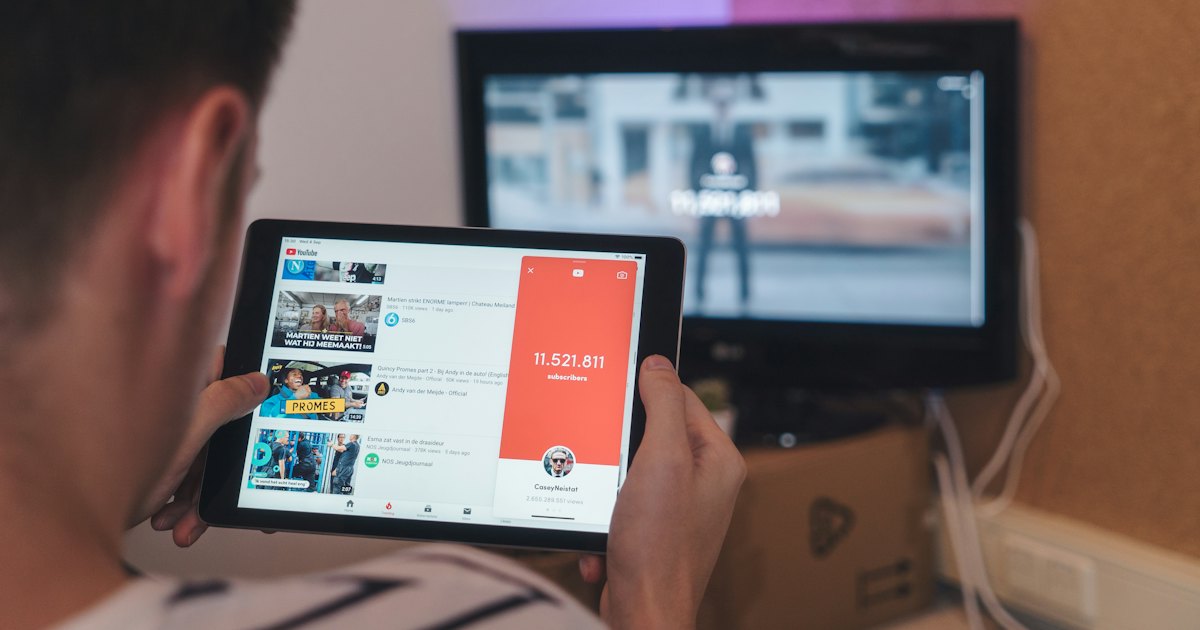
To screen mirror on Roku, open the Roku menu and turn mirroring on, then start casting from your device. Android and Windows use Roku's built-in Screen mirroring; an iPhone, iPad, or Mac uses AirPlay. The steps are the same whether your Roku is a plug-in stick or built into a Roku TV. Pick your Roku, and your screen appears.
On this page
I mirror to three Rokus at home — a Streaming Stick 4K behind an old Sony, a Roku Ultra in the den, and a TCL Roku TV (55S546) in the living room. Here's the thing people miss: the process is identical on all three, because you're setting up Roku OS, not the television. My honest take — AirPlay from an iPhone is the smoothest path by far. The one that fought me was Android mirroring, which lagged until I moved the phone next to the router.
Before you start, know that "screen mirroring" on Roku is two different features sharing one name. Android and Windows mirror one way; Apple devices use AirPlay, a separate menu. Casting a single app is a third path. The 30-second test below points you at the right one.
The 30-second test
Answer one question — which device are you mirroring from? That decides everything, because Roku exposes a different feature for each one.
- 1Mirroring from an Android phone or a Windows PC? Use Roku's built-in Screen mirroring — Method 1.
- 2Mirroring from an iPhone, iPad, or Mac? Use AirPlay, a separate menu on the Roku — Method 2.
- 3Only want one app, like YouTube or Netflix, in the best quality? Cast it instead of mirroring — Method 3.
Smart TV Remote
Every method here runs through the Roku's own Settings menus — and a lost or dead remote is what stalls you before you start.
Smart TV Remote puts the Roku D-pad and Home button on your phone over Wi-Fi.

Smart TV Remote
Free · iOS 16+



Method 1: Screen mirror from Android or Windows
This is the feature Roku actually labels "Screen mirroring." It works from Android 10 or later and Windows 10 or 11 PCs, using the Miracast standard. It copies your whole screen to the TV, so apps, photos, and slides all show in real time.
- 1Turn on screen mirroring on your Roku. From the home screen, press Home and open Settings > System > Screen mirroring. Set the mode to Prompt or Always allow — Prompt is safer, since it asks before any device connects. On some models this is off by default, so this step matters. It applies the same way on a Roku stick or a built-in Roku TV.
- 2Open the cast control on your device. On Android 10 or later, swipe down for Quick Settings and tap Smart View, Cast, or Wireless display (the name varies by brand). On Windows 10 or 11, press Windows key + K, or open Action Center and choose Connect. Your device then scans for nearby screens.
- 3Pick your Roku from the list. Choose your Roku by the name it shows in the found-devices list, like “Bedroom Roku.” If nothing appears, both devices must be on the same Wi-Fi network and close to the router.
- 4Accept the request on the Roku. When your device asks to connect, a box appears on the TV with Always allow, Allow, Block, and Always block. Highlight Allow or Always allow and press OK. Your device screen then mirrors onto the TV. To stop, disconnect from the same cast menu on your phone or PC.
When it won't work: iPhones and Macs can't use this menu at all — they need AirPlay in Method 2. Miracast also won't play DRM-protected video like Netflix cleanly — cast that instead (Method 3). Two Rokus never got screen mirroring — the Roku Express model 3700 and the Roku Express+ model 3710. Check yours under Settings > System > About. Roku's own walkthrough lives on its support site.
Method 2: Screen mirror from an iPhone, iPad, or Mac
Apple devices skip Roku's Screen mirroring menu entirely. They mirror over AirPlay, which sits in its own settings area. Most Rokus made in the last few years support it, and the menu path is the same on a stick or a Roku TV. Turn AirPlay on first, then mirror from Control Center.
- 1On the Roku, open Settings > Apple AirPlay and HomeKit and set AirPlay to On. If that menu isn't there, your model is too old for AirPlay — use casting in Method 3 instead.
- 2On the iPhone or iPad, open Control Center and tap Screen Mirroring. On a Mac, click the Control Center icon, then Screen Mirroring. Your device needs iOS 12.3 or macOS 10.14.5 or later.
- 3Pick your Roku from the list. A four-digit AirPlay code appears on the TV — type it into your device once. It's remembered, so you won't re-enter it next time.
- 4Your screen now mirrors to the TV. To stop, open Screen Mirroring again and tap Stop Mirroring, or press Home on the Roku remote.
Catch: AirPlay is version-gated. Your Roku needs Roku OS 9.4 or higher, and some newer models need Roku OS 10.0 or higher. If there's no "Apple AirPlay and HomeKit" entry in Settings, no update adds it. Apple lists the device requirements in its AirPlay support article. For the full Apple walkthrough, our guide to AirPlaying to a Roku TV from iPhone, iPad, or Mac covers the Control Center flow and the black-screen fix, and our guide to AirPlaying on Roku explains turning the feature on and streaming straight from an app.
Smart TV Remote
Turning AirPlay on, typing the four-digit code, switching inputs — that's a lot of one-button-at-a-time clicking on a stiff remote.
Smart TV Remote turns your phone into that remote, with a full keypad over Wi-Fi.
Smart TV Remote
Free · iOS 16+
Method 3: Cast a single app instead of mirroring
Mirroring isn't always the right tool. If you only want to watch one app — YouTube, Netflix, Disney+ — casting beats it. It sends just that app's video, streamed straight from the internet, so the quality is sharper and your phone stays free to text or lock. Our full guide to casting to Roku walks through every source and why Roku isn't a Chromecast.
- 1Open the app on your phone. Make sure the phone and the Roku are on the same Wi-Fi.
- 2Tap the Cast icon — a small screen with curved Wi-Fi lines in the corner of the app.
- 3Pick your Roku from the list. The app opens on the TV and plays there, while your phone becomes its remote.
Catch: casting only works inside apps that support it, and it can't show your home screen, a browser tab, or a slideshow. For those, you need true mirroring from Method 1 or 2. To send your own photos or videos instead, see our guide to screen sharing on a Roku TV and its Play on Roku steps.
Method 4: Turn it on when your Roku remote is gone
Every method above starts on the Roku — enabling mirroring, turning on AirPlay, or pressing Allow on a request. All of it needs the remote. If yours is lost or dead, a phone remote app fills the gap. To be clear: the app doesn't mirror your screen. It drives the Roku so you can set mirroring up.
The one every Roku owner can use for free is Roku's own app. The official Roku mobile app (Apple App Store and Google Play) lists a remote to “control your Roku devices” and an on-screen keyboard to enter text. Install it, join the same Wi-Fi as the Roku, and you get Home, a directional pad, and OK on screen. Use them to open Settings, flip on Screen mirroring or AirPlay, and press Allow when the connect request appears — then drive play, pause, and volume from the same app once the mirror is live.
Catch: a phone remote app needs the Roku already on Wi-Fi. If the set is offline, get it connected first — see our guide to connecting a TCL Roku TV to Wi-Fi without a remote — then set up mirroring from the app. Own a TCL Android TV or Google TV instead of a TCL Roku TV? It's a different platform with its own remote and pairing steps — see the TCL Android TV remote guide.
Which Roku devices support screen mirroring
Because "Roku" covers both plug-in players and built-in Roku TVs, support is best read by device type, not by TV brand. Match your Roku to the row that fits.
| Roku device | Screen mirroring (Android / Windows) | AirPlay (iPhone / iPad / Mac) |
|---|---|---|
| Roku Streaming Stick 4K | Yes | Yes, on Roku OS 9.4+ |
| Roku Ultra | Yes | Yes, on Roku OS 9.4+ |
| Roku Express (current) | Yes | Yes, on Roku OS 9.4+ |
| Roku Express model 3700 | No | No |
| Roku Express+ model 3710 | No | No |
| Roku TV (built-in) | Yes | Yes, on Roku OS 9.4+ (some 10.0+) |
My advice: cast when you can and mirror when you must. Casting one app looks better and drains your phone less. Save full mirroring for slideshows, photos, or an app with no Cast button. And if the mirror shows up as its own tile, our guide to changing the input on a Roku TV explains how Roku handles it.
If you meant screen share (photos and videos)
Roku's mobile app can push your own photos, videos, and music to the TV without mirroring the whole phone — that's Play on Roku / media share, not Screen mirroring. Use Method 3 (cast one app) when you want one video in full quality, or the Roku app's media share when the files live on the phone. Whole-screen mirroring is Method 1 (Android/Windows) or AirPlay.
Frequently Asked Questions
Can any Roku screen mirror?
Most can. Screen mirroring works on nearly all current Roku streaming players and Roku TVs, from Android 10 or later and Windows 10 or 11. Two exceptions never got it — the Roku Express model 3700 and the Roku Express+ model 3710. Check your model under Settings > System > About before you start.
How do I screen mirror to a Roku stick?
Exactly the same way you'd mirror to a Roku TV. On the stick, open Settings > System > Screen mirroring and make sure it's enabled. Then start Smart View or Cast on Android, or press Windows key + K on a PC, and pick your Roku. The stick doesn't care what TV it's plugged into — you're configuring Roku OS.
Does a Roku Express support screen mirroring?
Current Roku Express models do. Only the older Roku Express (model 3700) and Roku Express+ (model 3710) lack it. To confirm, open Settings > System > About and read the model number, or open Settings > System > Screen mirroring — if the menu is missing, your Express doesn't support it.
Why won't my phone find my Roku to mirror?
Usually the two are on different Wi-Fi networks, or mirroring is off. Put your phone and the Roku on the same network — a 5GHz versus 2.4GHz split counts as different. Then confirm screen mirroring is enabled under Settings > System > Screen mirroring. Restarting the Roku clears most stuck cases.
Is screen mirroring on Roku the same as casting?
No. Mirroring copies your whole screen in real time, including notifications, over Screen mirroring or AirPlay. Casting sends only one app's video — you tap the Cast icon in YouTube or Netflix, and the Roku streams it from the internet. Casting gives sharper quality and frees your phone for other tasks.
Do I need the Roku app to screen mirror?
No. Mirroring uses your phone's own built-in tools — Smart View on Android, Screen Mirroring on Apple devices — not the Roku app. The official Roku app helps for private listening and casting your own photos, but it isn't required to mirror your screen.
Can I screen mirror to a Roku without Wi-Fi?
Not easily. Both Roku's Screen mirroring and AirPlay need the Roku and your device on the same Wi-Fi network — there's no built-in Bluetooth or cable path. The only no-router workaround is a phone hotspot: join the Roku and your phone to it, then mirror. Many Rokus won't hold a phone-hotspot connection reliably, so treat it as a last resort.
Does a TCL Roku TV support AirPlay?
Most do. TCL Roku TVs in the 4-Series, 5-Series, and 6-Series from 2020 onward support AirPlay 2 and HomeKit, running Roku OS 9.4 or later. Check under Settings > Apple AirPlay and HomeKit — if the menu is there, your set supports it. Some older or entry-level HD TCL Roku models don't have it at all.