Guide
How to AirPlay on Roku From an iPhone, iPad, or Mac
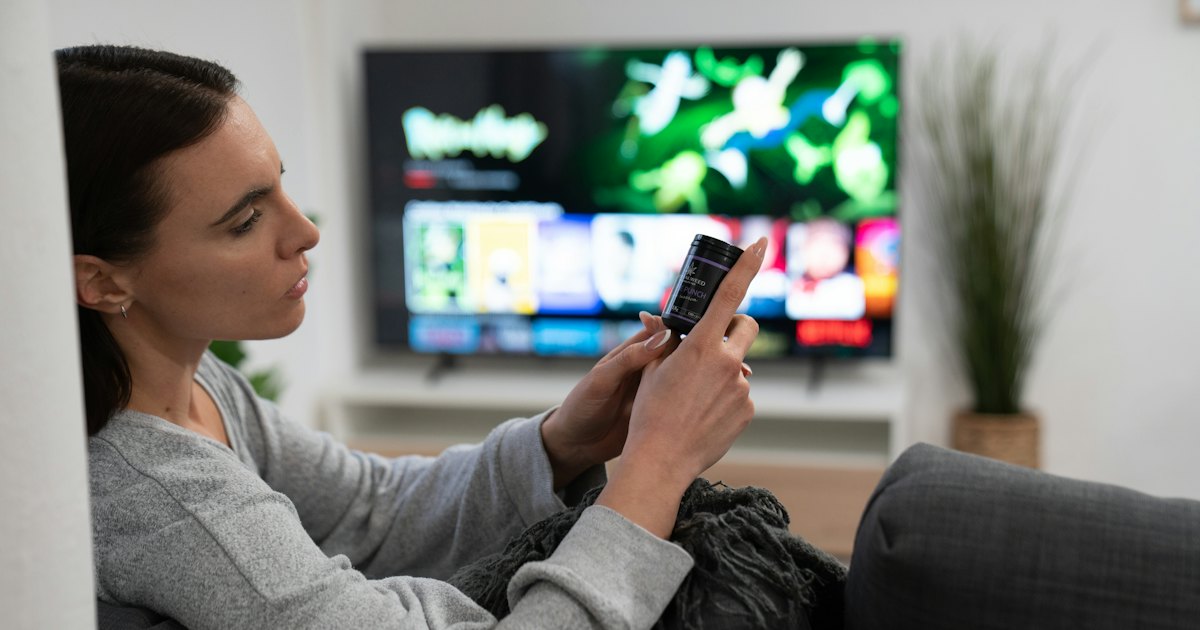
To AirPlay on Roku, first turn AirPlay on under Settings > Apple AirPlay and HomeKit. Then, on your iPhone, iPad, or Mac, open the app, tap the AirPlay icon, and pick your Roku — or open Control Center and tap Screen Mirroring to send your whole screen. It works the same on a Roku stick or a Roku TV. Both devices must share one Wi-Fi network.
On this page
I AirPlay to two Rokus at home — a Roku Streaming Stick 4K behind an old panel and a TCL 4-Series Roku TV in the living room — from an iPhone, an iPad, and a MacBook Air. Here's what people miss: the setup is identical on the stick and the TV, because you turn AirPlay on in Roku OS, not on the television. My honest take — streaming a video from inside the app looks sharper than mirroring. The one thing that tripped me up early was the guest Wi-Fi; the Roku vanished from the list until I moved both onto the main network.
AirPlay is Apple's built-in way to send content to a TV, and Roku supports it — no app to install on the Apple side. It does three jobs, not one. You can stream a single video, photo, or song from an app; you can mirror your whole screen; and you can send audio. The 30-second test below points you at the right one.
The 30-second test
Answer one question before you dig through menus. What you want on the TV decides which AirPlay job you need.
- 1Your Roku doesn't show up in the AirPlay list at all? Turn AirPlay on first — Method 1.
- 2Want to watch one show, a photo album, or a playlist in the best quality? Stream it from the app — Method 2.
- 3Want your whole iPhone or iPad screen — a web page, an app, a slideshow — on the TV? Mirror it — Method 3.
- 4Sending a Mac desktop, a Keynote, or a browser tab? AirPlay from the Mac — Method 4.
- 5It finds the Roku but the connection fails or drops? Go to Fix 5.
Smart TV Remote
Every route below starts by switching AirPlay on in the Roku's Settings menus — the step that stalls you when the remote is lost or the buttons are dead.
Smart TV Remote puts the Roku's D-pad and Home button on your phone over Wi-Fi.

Smart TV Remote
Free · iOS 16+



Method 1: Turn on AirPlay on your Roku
If your Roku never appears when you tap AirPlay, the feature may be switched off. Open the Roku's settings and confirm AirPlay is on. Set it once and it stays on for every Apple device in the house.
- 1On the Roku, press Home and open Settings > Apple AirPlay and HomeKit. Set AirPlay to On.
- 2Set Require Code to First time only, so you type the passcode once instead of at every connect.
- 3Confirm the model supports it: open Settings > System > About. AirPlay 2 needs Roku OS 9.4 or later — some models need 10.0. If there's no “Apple AirPlay and HomeKit” entry, the set is too old and no update adds it.
No remote to reach those menus? If your Roku lives inside a TCL, the free online TCL remote finder above walks you through controlling the set from your phone without the original remote, so you can open Settings and flip AirPlay on. One thing it can't do is cast your screen — that's a separate job, and it's exactly what AirPlay itself handles in the methods below.
Roku's official list of AirPlay models and OS versions is on its support site — worth a look if you're not sure your Roku qualifies.
Method 2: AirPlay a video, photo, or song from an app
This is the best-quality way to AirPlay, and the one to reach for first. Instead of copying your whole screen, it sends just one app's content — a video, a photo album, a playlist — straight from the app to the Roku. The picture stays crisp and your phone is free to text or lock.
- 1Put your Apple device and Roku on the same Wi-Fi. AirPlay only finds the Roku when both sit on one network. On an iPhone or iPad, open Settings > Wi-Fi; on a Mac, click the Wi-Fi menu. On the Roku, open Settings > Network to check it matches. A 2.4GHz and a 5GHz band on the same router work together, but a separate guest network won't. This is the same on a plug-in Roku stick or a built-in Roku TV.
- 2Open the app and start the video, song, or photo. Open the app you want to send — the Photos app, the Apple TV app, Apple Music, or a video in Safari. Start playing the clip or open the photo. AirPlay streams straight from the app to the Roku, so the picture and sound stay in full quality.
- 3Tap the AirPlay icon and pick your Roku. Tap the AirPlay video icon in a video app, or the AirPlay audio icon in a music app — a triangle under a rectangle. In some apps you tap the Share icon first to reveal it. Then choose your Roku from the list by the name it shows, like “Living Room TCL.”
- 4Enter the code if the Roku asks. The first time you connect, the Roku shows a 4-digit passcode on the TV. Type it into your device once and the content plays on the big screen. To skip it next time, set Require Code to First time only under Settings > Apple AirPlay and HomeKit.
Good to know: not every app has an AirPlay button, and a few paid streaming apps only offer their own cast icon instead. For the full list of what casts and how, see our guide to casting to Roku. Apple's own AirPlay walkthrough sits on its support site.
Method 3: Mirror your whole iPhone or iPad screen
Some things have no AirPlay button — your Home screen, a browser tab, a game, a Keynote. For those, mirror the whole screen instead. Everything you do on the iPhone or iPad shows on the TV in real time, over the same AirPlay you just switched on.
- 1Open Control Center: on a Face ID iPhone or a Home-button-free iPad, swipe down from the top-right corner; on an older device, swipe up from the bottom edge.
- 2Tap Screen Mirroring — two overlapping rectangles — wait a second for the list, then pick your Roku. If it isn't listed, AirPlay is off; go back to Method 1.
- 3Enter the 4-digit code the TV shows. Your whole screen appears. Rotate the device to landscape to fill the TV. To stop, tap Screen Mirroring > Stop Mirroring.
Catch: mirroring a paid app like Netflix or Disney+ often gives sound but a black picture — that's copy protection, not a fault. Stream the app from Method 2 instead. Your device needs iOS 12.3 or later. Our full guide to AirPlaying to a Roku TV walks through the black-screen fix in depth.
Smart TV Remote
Switching AirPlay on, entering codes, retyping Wi-Fi passwords — that's a lot of one-button-at-a-time clicking on a stiff remote.
Smart TV Remote turns your phone into that remote, with a full keypad over Wi-Fi.
Smart TV Remote
Free · iOS 16+
Method 4: AirPlay from a Mac
A Mac AirPlays to a Roku too, from the menu bar — handy for a Keynote, a browser demo, or a slideshow on the big screen. It needs macOS Mojave 10.14.5 or later, and it mirrors your Mac's display straight to the TV.
- 1Click Control Center in the menu bar (the two-toggle icon near the clock), then click Screen Mirroring.
- 2Pick your Roku from the list and enter the 4-digit code the TV shows. If the Roku isn't listed, turn AirPlay on with Method 1 and check both are on the same Wi-Fi.
- 3Your Mac screen appears on the TV. To stop, click Screen Mirroring in Control Center again and pick your Roku to disconnect.
To send one video only, skip mirroring: open the app or a video in Safari and click the AirPlay icon in the player. That dodges the black screen on paid streaming and keeps full quality, the same as Method 2 on a phone.
Fix 5: When your Roku won't appear in the AirPlay list
AirPlay is on, but the Roku won't list, or it connects and then drops. Work through these by symptom — nearly every one is a network or setting issue, not broken hardware.
- 1Roku isn't in the list: the Apple device and Roku are on different networks. Put both on the same Wi-Fi — a guest network or a phone VPN hides the Roku. Turn the VPN off and retry.
- 2It's genuinely missing: your model may not support AirPlay. Roku TVs numbered 5XXXX or 6XXXX, and the older players 2700X, 2710X, 2720X, 3500X, 3700X, 3710X, and 4400X, never got it. Check Settings > System > About.
- 3You get sound but a black screen when mirroring: that's copy protection on a streaming app. Don't mirror it — stream the app from Method 2 instead.
- 4It connects then stutters or drops: weak Wi-Fi. Move closer to the router or switch both devices to the 5GHz band. A busy 2.4GHz network is the usual cause.
- 5Nothing works: restart the Roku from its System settings, then install any pending Roku software update. Update the Apple device too — AirPlay is fussy about old firmware on either side.
When the Roku won't even respond to the remote to open Settings, the problem isn't AirPlay. Sort the remote first — our guide to a TCL Roku TV remote that isn't working covers re-pairing and the phone-app fallback.
Which Roku devices support AirPlay 2
Because "Roku" covers both plug-in players and built-in Roku TVs, AirPlay support is best read by device, not by TV brand. Match your Roku to the row that fits, then confirm the model under Settings > System > About.
| Roku device | AirPlay 2 | Requirement |
|---|---|---|
| Roku Streaming Stick / Stick 4K | Yes | Roku OS 9.4+ |
| Roku Ultra | Yes | Roku OS 9.4+ |
| Roku Express (current 4K) | Yes | Roku OS 9.4+ |
| Roku Select & Plus Series TVs | Yes | Any Roku OS version |
| Roku TV models starting 5XXXX or 6XXXX | No | Not supported |
| Players 2700X, 2710X, 2720X, 3500X, 3700X, 3710X, 4400X | No | Not supported |
My rule of thumb: stream from the app whenever it shows an AirPlay button, and keep mirroring for the odd web page or slideshow that has none. To send a YouTube or Netflix app instead of AirPlaying, see our guide to casting to Roku. And if you're on an Android phone or a Windows PC instead of Apple, our guide to screen mirroring on Roku covers the Miracast route those devices use.
If you want to mirror an iPhone to a Roku TV
That's AirPlay Screen Mirroring, Method 3 above: Control Center → Screen Mirroring → pick the Roku. Streaming a single video from Photos or the TV app (Method 2) looks better and avoids the black-screen DRM issue some apps show when you mirror the whole phone. Same steps on a Roku stick or a Roku TV.
Frequently Asked Questions
Which Roku devices support AirPlay?
Most current ones do. AirPlay 2 works on nearly every Roku player and Roku TV running Roku OS 9.4 or later, and Roku Select and Plus Series TVs support it on any OS version. The exceptions never got it — Roku TV models starting with 5XXXX or 6XXXX, and older players numbered 2700X, 2710X, 2720X, 3500X, 3700X, 3710X, and 4400X. Check yours under Settings > System > About.
How do I turn on AirPlay on my Roku?
Press Home, open Settings > Apple AirPlay and HomeKit, and set AirPlay to On. That's the first thing to check if your Roku won't appear when you AirPlay. While you're there, set Require Code to First time only so you skip the passcode after the first connect. If the menu isn't there, your model is too old for AirPlay.
Can you AirPlay to a Roku streaming stick?
Yes, exactly like a Roku TV. A Roku Streaming Stick 4K, Ultra, or current Express supports AirPlay on Roku OS 9.4 or later. The setup is identical because you're configuring Roku OS, not the TV it's plugged into. Open Settings > Apple AirPlay and HomeKit on the stick, turn AirPlay on, then AirPlay from your iPhone as usual.
Why won't my Roku show up on AirPlay?
Usually AirPlay is switched off, or the two devices are on different networks. Turn AirPlay on under Settings > Apple AirPlay and HomeKit, then put the iPhone and Roku on the same Wi-Fi — a guest network or a work VPN hides the Roku. Restart the Roku and reopen the AirPlay menu. A model too old for AirPlay never lists at all.
Do I need an app to AirPlay to Roku?
No. AirPlay is built into every iPhone, iPad, and Mac, so there's nothing to install on the Apple side. Tap the AirPlay icon inside an app, or Screen Mirroring in Control Center, and pick your Roku. The official Roku mobile app helps with its own casting and private listening, but it isn't needed to AirPlay.
Is AirPlay on Roku the same as screen mirroring?
Not quite — mirroring is one thing AirPlay does. Streaming sends a single app's video or a photo to the Roku in full quality, and frees your device. Mirroring copies your whole screen in real time, notifications and all. Use streaming for a show or a slideshow app, and mirroring for a web page, your Home screen, or an app with no AirPlay button.