Guide
How to Clear the Cache on a Roku TV
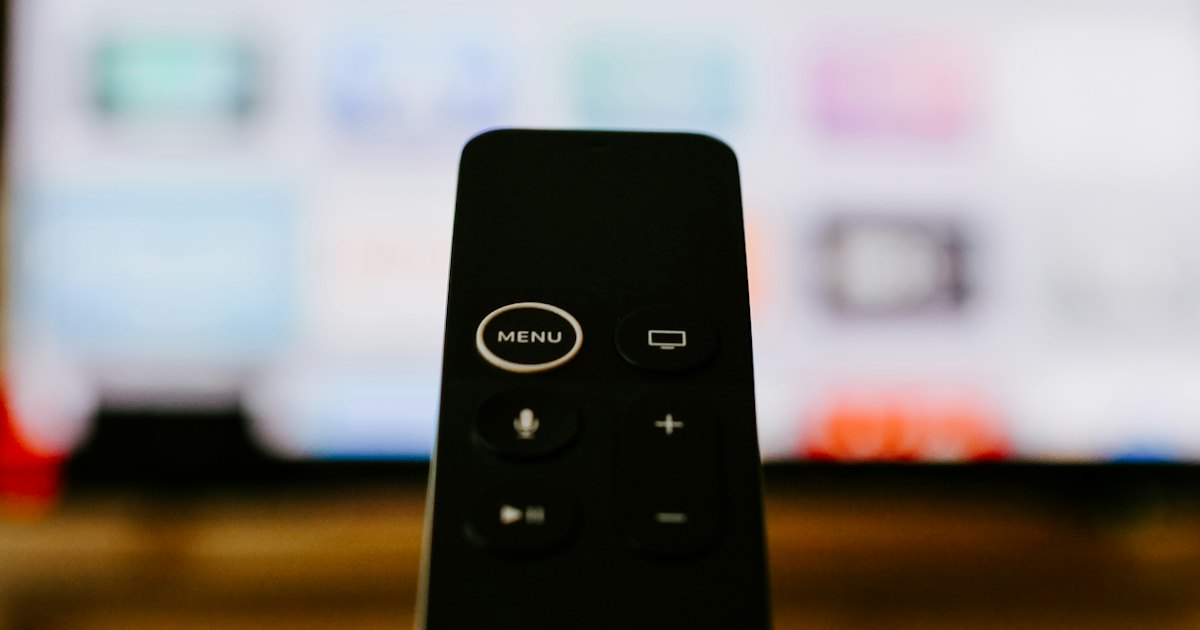
To clear the cache on a Roku TV, press Home five times, then Up once, then Rewind twice and Fast-Forward twice — the TV restarts and clears its cache in about 30 seconds. For a single crashing app, remove and re-add that channel instead. A full power cycle clears the deepest memory.
On this page
I've run this on the three TCL Roku TVs in my house — a 5-Series (55S546) that started stuttering in the YouTube app, a 4-Series (65S425), and a 3-Series (32S327) in the bedroom. My honest take: the remote button sequence fixes a sluggish, laggy Roku maybe seven times out of ten, and it takes 30 seconds. The one it didn't fix was the 55 — one channel kept crashing on launch, and only removing and re-adding that single app cleared it.
One thing to know up front: Roku has no "clear cache" button in its settings the way an Android TV does. So the real answer is a handful of methods that flush memory a different way — a remote sequence, a restart, a power cycle, and a per-app reinstall — ordered below by how fast they work and how much they leave untouched. If only the Home screen drags when you switch between inputs, a restart usually settles that too. A stuttering screen mirror often clears up after a power cycle as well.
The 30-second test
Before you clear anything, work out what's actually slow. The fix depends on whether the whole TV is dragging or just one app is misbehaving. Ask yourself these three questions.
- 1Is the whole interface slow, or just one app? If menus and every channel lag, the system cache is the target — start with Method 1. If only one app freezes or crashes, jump to Method 4 and reinstall just that channel.
- 2Does the remote still respond at all? If nothing happens when you press buttons, this is a frozen set, not a cache problem — power-cycle it first (Method 3) before anything else.
- 3Did it get slow right after an update? A large channel or Roku OS update can leave stale data behind. A system restart (Method 2) usually settles it without touching your apps.
Smart TV Remote
The button sequence needs a working remote in your hand. Lost or broke yours?
Smart TV Remote sends Home, Rewind, and Fast-Forward from your phone over Wi-Fi — free, no account.

Smart TV Remote
Free · iOS 16+



Method 1: Clear the cache with the remote
This is the one most people mean by "clear cache on a Roku TV." It's a hidden button sequence that forces Roku to flush its system cache and restart. It's free, it takes half a minute, and it keeps every app and login in place. The trick is doing it from the home screen, at a steady pace.
- 1Get to the Roku home screen. Press the Home button so you land on the main Roku home screen, not inside a channel. The cache-clear sequence only registers from the home screen — if an app is open, back all the way out first.
- 2Press Home five times. Tap the Home button (the house icon) five times in a row at a steady pace. You don't need to rush, but don't pause for several seconds between presses or the sequence won't take.
- 3Press Up once. Press the Up arrow on the directional pad a single time. On a TCL Roku remote the D-pad is the ring of arrows around the OK button.
- 4Press Rewind twice, then Fast-Forward twice. Press the Rewind button (two left triangles) two times, then the Fast-Forward button (two right triangles) two times. That's the full sequence: Home ×5, Up ×1, Rewind ×2, Fast-Forward ×2.
- 5Wait for the TV to restart on its own. The screen freezes for 15 to 30 seconds, goes black, and Roku reboots by itself. When the home screen returns, the cache is cleared. Don't unplug the set or press anything during the wait.
Catch: the sequence needs a working remote with responsive Rewind and Fast-Forward buttons. If those keys are worn out or the remote is dead, you can send the exact same presses from a phone app (below) — or, if the remote is the real problem, see our TCL Roku TV remote not working guide. Not sure which remote you have — the basic IR clicker has no Rewind or Fast-Forward keys, so the shortcut needs a media remote? The Roku remote identifier names yours in a few taps. Roku's own restart steps are on its support site.
No remote, or the buttons don't respond? Install Smart TV Remote on your phone, join the same Wi-Fi as the TV, and tap Home five times, Up once, then Rewind twice and Fast-Forward twice on the app's pad. It sends the identical key codes over Wi-Fi, so the cache clears the same way — no physical remote needed.
Method 2: Restart the system from Settings
A system restart is the menu version of Method 1. It reboots Roku cleanly, which flushes temporary memory and often settles a set that got slow after an update. Use this when the interface still responds enough to reach the menu.
- 1Press Home, then open Settings from the left menu. Scroll down the list to Settings — it's the gear-style option near the bottom of the home rail.
- 2Go to System > Power. On some models the Power submenu is skipped and System restart sits directly under System — either way you're heading for the restart option.
- 3Select System restart and confirm. The TV shuts down and boots back up in under a minute. Your channels, logins, and settings all stay exactly as they were.
Catch: a restart clears less than a full power cycle. If the TV is slow again within an hour, the temporary memory isn't the root cause — move on to Method 3 or check your Wi-Fi signal.
Method 3: Power-cycle to clear the memory
A power cycle clears deeper memory than a soft restart, because it fully discharges the board instead of just rebooting the software. Reach for it when the menu is too laggy to navigate, or when a restart didn't hold. It costs nothing but a minute of waiting.
- 1Unplug the TV at the wall, not just the back of the set. Pull the cord from the outlet itself and leave it out for a full 60 seconds so residual charge on the power board drains.
- 2Press and hold the TV's own power button for 15 seconds while it's unplugged. On slim 5- and 6-Series TCL sets that's the joystick nub under the front-center — press it straight in.
- 3Plug it back into the wall and turn it on. Skip any power strip for this test. When it boots to the home screen, the memory is cleared and any soft lock is gone.
Catch: if the TV won't come back on after the power cycle, that's no longer a cache issue — it's a power fault. Work through our TCL Roku TV won't turn on guide instead. And if a bloated cache is crashing apps hard enough that the whole set keeps restarting, clearing it here is the first fix to try.
Smart TV Remote
Driving these menus with a laggy or missing remote is painful.
Smart TV Remote gives you a fast, responsive D-pad on your phone to reach Settings and restart — free.
Smart TV Remote
Free · iOS 16+
Method 4: Clear one app's cache by reinstalling it
When only one channel is the problem — it crashes on launch, won't load video, or shows old data — you don't need to touch the whole TV. Roku can't clear a single app's cache from a menu, but removing and re-adding the channel forces a clean install and wipes its stored data.
- 1Highlight the problem channel on the home screen. Move the cursor onto its tile, but don't open it.
- 2Press the Star (*) button to open the options menu. Choose Remove channel, then confirm. This deletes the app and everything it cached.
- 3Re-add it from the store. Open Streaming Channels (or search from Home), find the app, and add it back. It downloads fresh, so you'll sign in again — but the crash or stale data is gone.
Catch: reinstalling logs you out of that channel, so have your password ready. It only affects the one app you remove — everything else on the TV is untouched.
Method 5: Factory reset as a last resort
A factory reset wipes the TV back to how it left the box. It clears every cache along with everything else, so treat it as the final option after the first four methods fail. Only do this if the set stays slow no matter what.
- 1Open Settings > System > Advanced system settings > Factory reset. If the menu is unreachable, use the recessed RESET pinhole on the back panel with a paperclip instead.
- 2Enter the on-screen code and confirm. Roku asks you to type a short code to prove it's deliberate, then wipes the TV and reboots into first-time setup.
- 3Set it up fresh. You'll reconnect Wi-Fi, sign back into every channel, and re-pair the remote. Everything is gone, which is exactly why this is last.
Catch: a factory reset erases every channel, login, and setting — don't use it for routine slowness. It's also the only way to move the TV to a different Roku account, if that's really what you're after. Look up warranty and model-specific reset steps on TCL's support site.
Which method clears what
Not every method fits every symptom. Match what your Roku TV is doing to the method that clears the right thing — and see what each one keeps so you don't wipe more than you need to.
| Method | What it clears | Keeps apps & logins? | Best for |
|---|---|---|---|
| Remote sequence | System cache | Yes | Whole TV running slow |
| System restart | Temporary memory | Yes | Slow after an update |
| Power cycle | Deep memory | Yes | Frozen or menu too laggy |
| Reinstall a channel | One app's cache | Only that app | One crashing app |
| Factory reset | Everything | No | Last resort only |
My advice: always start with the remote sequence in Method 1 — it's the fastest, it keeps everything, and it fixes most sluggish Roku sets. If just one app is the culprit, reinstall that channel and leave the rest alone. Save the factory reset for a TV that stays slow after all of it. If the picture is fine but simply too bright, that's a settings fix, not a cache one — see how to turn the brightness down on a Roku TV.
Frequently Asked Questions
How do I clear the cache on a Roku TV?
From the Roku home screen, press Home five times, Up once, Rewind twice, then Fast-Forward twice. The TV freezes for about 30 seconds and restarts on its own, which clears the cache. There's no cache menu on Roku, so this button sequence and a system restart are the two built-in ways to do it.
Where is the clear cache option in Roku settings?
There isn't one. Roku doesn't expose a cache menu the way Android TV does, so you can't clear cache from Settings directly. The closest built-in option is Settings > System > Power > System restart, which reboots the TV and flushes temporary memory. The Home ×5, Up, Rewind ×2, Fast-Forward ×2 remote sequence does the same thing faster.
How do I clear the cache for one app on a Roku TV?
Roku can't clear a single app's cache from a menu. To force one channel to reset, highlight it on the home screen, press the Star (*) button, choose Remove channel, then re-add it from the Streaming Channels store. Reinstalling wipes that app's stored data and cache while leaving the rest of the TV untouched.
Does clearing the cache delete my apps or accounts?
No. The button-sequence cache clear and a system restart only flush temporary memory — your channels, logins, and settings all stay. Reinstalling a single channel only affects that app. The one method that erases everything is a factory reset, which wipes all channels and sign-ins and should be a last resort.
How often should I clear the cache on a Roku TV?
Only when you notice a problem — slow menus, stuttering video, or an app that freezes or won't load. There's no benefit to doing it on a schedule. If you find yourself clearing the cache every few days, the real issue is usually low storage on a busy channel or a weak Wi-Fi signal, not the cache itself.
My Roku TV is still slow after clearing the cache. What now?
Do a full power cycle: unplug the TV for 60 seconds, then plug it straight into the wall. That clears deeper memory than a soft restart. If it's still sluggish, check your internet speed and remove channels you don't use to free storage. A set that stays slow after all of that may need a factory reset.