Guide
How to Turn the Brightness Down on a Roku TV
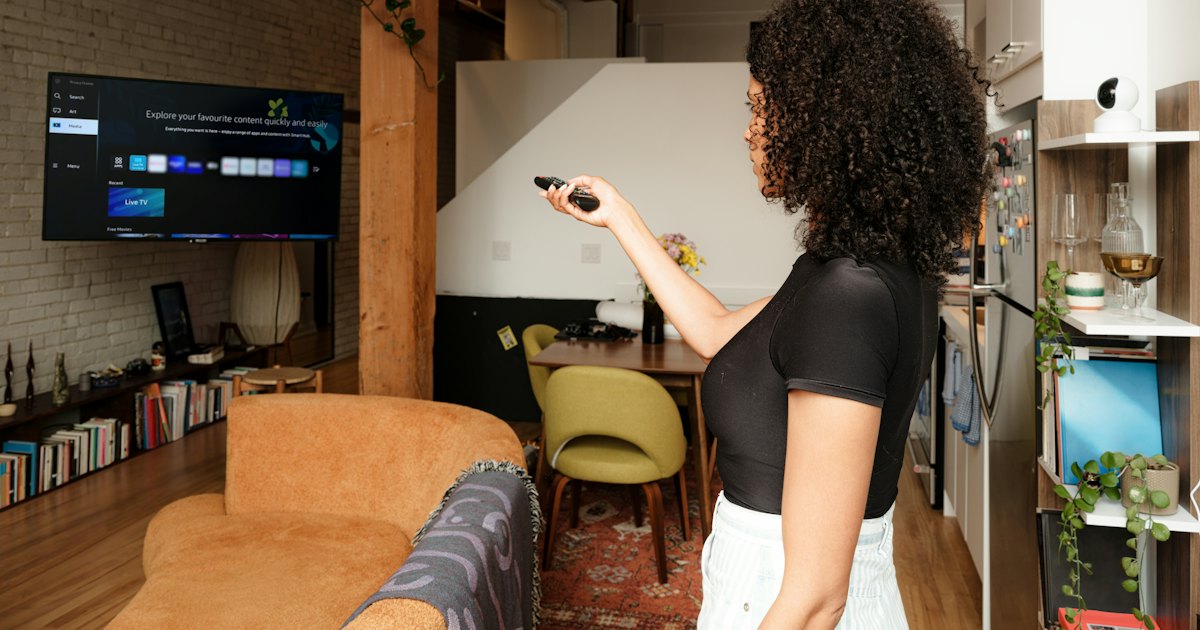
To turn the brightness down on a Roku TV, press the Star (*) button on your remote while something is playing, open Picture settings, and lower the Backlight slider. Backlight controls the screen's actual light output, so drop it toward the low end for a dark room. For a one-tap dim, switch the picture mode to Movie or Normal.
On this page
I've dimmed this on a stack of Roku TVs — a TCL 5-Series (55S546) that came out of the box in eye-searing Vivid mode, a 4-Series (43S435) in a bedroom that was too bright to sleep near, and an Onn Roku TV a friend swore had “no brightness control.” It does. My honest take: the one setting that matters is Backlight, and almost every guide confuses it with Brightness. The limit worth knowing — the menu is Roku OS, so these steps are the same on any Roku TV, but the exact slider names shift a little between model years.
Below are five ways to bring the brightness down, ordered by what dims the screen fastest and for free — the backlight slider, a dimmer picture mode, the auto-brightness sensor, the black-level sliders, and saving your change across every input. If your set is stuck bright because an app is misbehaving rather than a setting, start by clearing the cache on your Roku TV instead.
The 30-second version
In a hurry? This is the whole fix in four button presses. The longer methods below only matter if this doesn't get you where you want.
- 1Play anything — an app, live TV, an HDMI input. The picture menu won't open on the Roku home screen.
- 2Press the Star (*) button on the remote to open the Options panel on the right.
- 3Open Picture settings and lower the Backlight slider with the left D-pad.
- 4Still too bright or too warm? Switch the picture mode to Movie or Normal. Press Back to save.
Smart TV Remote
Remote lost, or missing the Star (*) button that opens this menu?
Smart TV Remote drives a TCL or other Roku TV over Wi-Fi — free, no account, with an Options key.

Smart TV Remote
Free · iOS 16+



Method 1: Lower the backlight from Picture settings
This is the fix that actually dims the screen. On a Roku TV, the Backlight slider controls the panel's light output — drop it and the whole picture gets darker, glare and all. It costs nothing, takes ten seconds, and it's the first thing to change. Here's the exact path.
- 1Start playing something. Play live TV, a streaming app, or any HDMI input first. The Picture settings menu only opens over a moving picture — it won't appear on the Roku home screen, which trips up most people on their first try.
- 2Press the Star (*) button. Press the button marked with an asterisk (*) on your Roku remote, usually just below the directional pad. A settings panel slides in from the right edge of the screen. Roku calls this the Options menu.
- 3Open Picture settings and find Backlight. Select Picture settings, then move down to the Backlight slider. Press left on the D-pad to lower it. Backlight sets the panel's actual light output, so this is the one slider that makes the screen physically dimmer.
- 4Lower it and close the menu. Drop the backlight toward the low end for a dark room, or around the middle for daytime, until the glare is gone. Press Back to close the panel — the setting saves on its own, no confirm needed.
Catch: don't confuse Backlight with the Brightness slider two rows down — Brightness only moves the black level, and lowering it makes shadows murky without fixing glare (that's Method 4). If your remote has no Star (*) button or you can't find it, reach the same menu with Smart TV Remote on your phone over Wi-Fi. Roku's own picture guidance lives on its support site.
Method 2: Switch to a dimmer picture mode
Don't want to fiddle with sliders? A picture mode changes the whole look in one tap, backlight included. Vivid is the bright, punchy store-demo preset most Roku TVs ship in. Movie (sometimes called Cinema) and Normal are noticeably dimmer and warmer, and Low Power caps the backlight to save energy.
- 1Play something, press the Star (*) button, and open Picture settings.
- 2Select Picture mode at the top of the panel. You'll see options like Vivid, Normal, Movie, Sports, and on some sets Low Power.
- 3Choose Movie or Normal for an easy dim, or Low Power if your TV lists it. Each preset sets its own backlight and color temperature.
- 4Prefer to keep tuning? Any slider you change from here — including Backlight — is saved under that picture mode, so your tweaks stick per mode.
Catch: presets change color too, not just brightness. Movie mode looks warmer and more yellow than Vivid, which some people read as “dull” at first. Give your eyes a few minutes before you judge it, or fall back to Method 1 and dim Normal by hand.
Smart TV Remote
Tuning picture settings from the couch and squinting at a tiny remote?
Smart TV Remote gives a TCL or Roku TV a full on-screen D-pad and Options key over Wi-Fi — one free app.
Smart TV Remote
Free · iOS 16+
Method 3: Turn off Auto Brightness
If your Roku TV brightens and dims on its own, a light sensor is doing it. Auto brightness reads the room and adjusts the backlight to match, which is great for some and maddening for others. Turn it off and the backlight stays exactly where you set it.
- 1Play something and press the Star (*) button to open Picture settings.
- 2Scroll to Advanced picture settings, or look for a setting named Auto brightness or Automatic brightness.
- 3Set it to Off if you want a fixed level, or Low if you want gentler auto-dimming rather than none.
- 4Now set the Backlight by hand (Method 1). With the sensor off, it holds steady day and night.
Catch: not every Roku TV has the sensor. If there's no Auto brightness option in the menu, your model doesn't include one, and the brightness shifts you're seeing are coming from something else — often per-app HDR content, not a setting.
Method 4: Fix black level with Brightness and Contrast
Here's where most people go wrong. On a Roku TV, the slider labelled Brightness does not dim the screen — it sets the black level, or how dark the shadows sit. Lower it and dark scenes look inky but the panel is just as bright; raise it and blacks turn gray. Use it only to fix how shadows look, not glare.
- 1Open Picture settings with the Star (*) button and find the Brightness slider (below Backlight).
- 2If dark scenes look washed out or gray, lower Brightness a little until blacks look solid without swallowing shadow detail.
- 3If highlights look blown out or harsh, drop Contrast a notch — that's the slider that caps the bright, white end of the image.
- 4Leave both near their defaults if the picture already looks right. These are fine-tuning controls, not the way to make the TV dimmer.
Catch: if you came here because you lowered “Brightness” and nothing changed, that's exactly why — go back to Method 1 and lower Backlight instead. TCL documents its Roku picture controls on TCL's support site.
Method 5: Save the dimmer setting to every input
By default, Roku remembers picture settings per input. Dim the streaming apps and your game console on HDMI 2 can still blast you at full brightness. If you want one dim level everywhere, apply it to all inputs in one step.
- 1Set the backlight and picture mode you want on the current input (Methods 1 and 2).
- 2In the same Picture settings panel, look for Apply picture settings and choose Apply to all inputs. Not every model year offers this — if yours doesn't, repeat your settings on each input by hand.
- 3Switch to each HDMI source and confirm it looks right. Consoles and 4K players often default to their own brighter modes.
- 4Doing this across four or five inputs? Drive the Options key and D-pad from Smart TV Remote on your phone so you're not walking back and forth to reach the Star (*) button.
Catch: applying to all inputs copies your current mode's settings everywhere, so set it up the way you like first. Need to reach the menu without the physical remote at all? Install Smart TV Remote, join the TV's Wi-Fi, and its Options key opens the same Picture settings panel.
Which setting to change, and when
The sliders are easy to mix up, and changing the wrong one is why people think a Roku TV “won't get darker.” Match what you're trying to fix to the setting that actually controls it.
| Setting | What it changes | Use it when |
|---|---|---|
| Backlight | Actual screen light output | The screen is too bright or glares |
| Picture mode | The whole preset (light + color) | You want a one-tap dim |
| Auto brightness | Auto-dims to the room's light | Brightness changes on its own |
| Brightness | Black level / shadow depth | Dark scenes look gray or murky |
| Contrast | The bright, white end | Highlights look blown out |
My advice: change Backlight first and stop there if the glare is gone. Reach for a picture mode when you want warmth and dimness together, and only touch Brightness and Contrast to fix how shadows and highlights look — not to dim the set. If you also want to steer the TV without hunting for the clicker, see how to change the input on a Roku TV from the same menus.
Frequently Asked Questions
What's the difference between Backlight and Brightness on a Roku TV?
Backlight controls the screen's actual light output, so it's the slider that makes the TV physically dimmer or brighter. Brightness sets the black level — how dark the shadows look — not overall glare. If the screen is too bright, lower the Backlight. Lowering Brightness only crushes shadow detail and won't fix a too-bright panel.
Why is my Roku TV so bright?
Most often the picture mode is set to Vivid, which pushes the backlight to maximum for a store-display look. A high Backlight slider or an auto-brightness sensor raising the light in a bright room can also do it. Press the Star (*) button, open Picture settings, switch the mode to Normal or Movie, and lower the Backlight.
How do I make my Roku TV dimmer at night?
Lower the Backlight slider toward the low end and switch the picture mode to Movie or Cinema, which uses a warmer, softer image. A warm color temperature cuts blue light and eye strain in a dark room. Press the Star (*) button while something plays, open Picture settings, and adjust both. The change saves automatically.
Why does my Roku TV brightness keep changing by itself?
That's Auto brightness, a light sensor on the TV that raises and lowers the backlight to match the room. It's helpful for some, distracting for others. Turn it off under Advanced picture settings in the Star (*) menu. Not every Roku TV has the sensor — if you don't see the setting, your model doesn't have one.
Can I turn the brightness down without the remote?
Yes. Install a phone remote app like Smart TV Remote, join the same Wi-Fi as the TV, and use its Star (*) or Options key to open the Picture settings menu, then lower the Backlight. The TV's own menu does the dimming; the app just reaches it when your remote is lost or has no Star button.
Does turning the brightness down save power?
Yes. The backlight is the biggest power draw in an LED TV, so a lower Backlight setting cuts energy use directly. It also eases eye strain in a dark room and can slightly extend panel life. Roku's Low Power picture mode does the same thing in one step by capping the backlight.