Guide
How to Set Up, Fix, or Replace Your TCL TV Remote
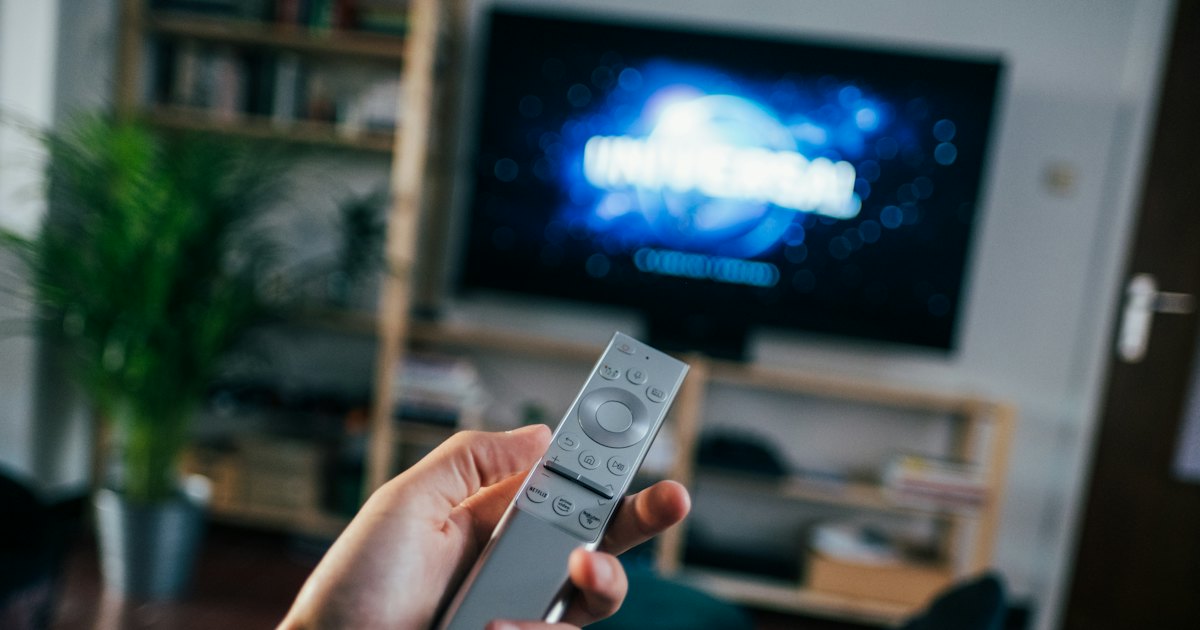
To sort out a TCL TV remote, first find out whether it's a plain infrared clicker or a wireless remote that pairs — check the battery bay for a pairing button. Then fix it with fresh batteries and a re-pair, replace it, or skip the hardware and run a full remote on your phone over Wi-Fi.
On this page
I keep three TCL sets running at home: a 4-Series Roku TV (43S451), a newer Google TV Q-class (55C655), and an older Android TV in the garage. My honest take: the remotes look almost identical, but they don't behave the same, and the fix that revives one does nothing for another. The garage remote is the one that always goes missing — when it does, I stop hunting and open the remote on my iPhone.
This guide covers the whole TCL TV remote, in the order that helps you most: figure out which one you have, fix it, put it on your phone as a backup, then replace it if you want hardware back in hand. Each route has exact steps and the honest catch. For the smart-TV-specific rundown of every way to run one, see the TCL smart TV remote guide . Not sure your set even runs Roku? The TCL remote finder tool checks it in a few taps.
The 30-second test
Before you pair, fix, or replace anything, learn two things: which platform your TCL runs, and which remote you hold. Together they decide every step below. This quick check saves you trying a Roku fix on a Google TV, or a pairing trick on a remote that can't pair.
- 1Glance at the home screen: a purple grid of tiles means Roku TV; a wide banner with a 'For you' row means Google TV; a plain app launcher row means older Android TV.
- 2Slide off the remote's battery cover. A pairing button next to the batteries (plus a mic or voice button on the front) means a wireless voice remote that pairs. No pairing button means a plain IR remote.
- 3No remote in hand at all? Jump to Method 2 and put a full remote on your phone in under a minute, then decide whether to replace the physical one.
Smart TV Remote
Remote missing while you sort this out?
Smart TV Remote controls your TCL TV over Wi-Fi right now — free, no account.

Smart TV Remote
Free · iOS 16+



Method 1: Revive your physical TCL remote
If your remote stopped responding, start here — most come back without a replacement. These steps work across Roku, Google TV, and Android TV sets. Run them in order; the wireless re-pair on the last step revives most voice remotes that go dark.
- 1Work out which remote you hold. TCL sets ship two kinds of remote: a plain infrared (IR) clicker that needs a clear line of sight, and a wireless remote (RF or voice) that pairs to the TV and has a pairing button in the battery bay. This decides which fix works, so check before anything else.
- 2Drop in fresh batteries. Weak batteries are the top cause of a dead TCL remote. Put in a new matched pair, lining up the + and - ends, before trying anything more involved. A sluggish remote that skips presses is almost always low on power.
- 3Power-cycle the TV. Unplug the TV at the wall for about 10 seconds, then plug it back in and wait for the home screen. A clean restart clears a frozen input state that can make a perfectly good remote look dead.
- 4Re-pair a wireless remote. If your remote has a pairing button in the battery compartment, hold it about 5 seconds until the status light flashes, then wait up to 30 seconds for the on-screen confirmation. A plain IR remote has no pairing button and skips this step entirely.
Catch: a plain IR remote has no pairing button, so the re-pair step can't apply — if it's dead after fresh batteries and a clear sensor, it's a hardware fault, not pairing. For the full checklist, including how to tell a dead remote from a TV fault, see our TCL TV remote not working guide. Not sure which model is in your hand? Read the code in the battery bay with our TCL remote identification guide, or the Roku-specific TCL Roku TV remote walkthrough. TCL's own steps live on TCL support.
Method 2: Put the TCL TV remote on your phone
Whether your remote is lost, broken, or just across the room, your phone is the fastest fill-in — and it works on every TCL platform. You have two honest routes: your platform's official app, or a universal remote app that skips the account.
- Official app: the free Roku app or the Google TV app gives the full remote plus voice, but each asks you to sign in and only works on its own platform.
- Universal app: a no-account app finds your TCL on Wi-Fi and controls it in a minute, whichever platform it runs.
If you'd rather skip the sign-in, Smart TV Remote pairs with your TCL over Wi-Fi with no login. Here's the setup for any remote app:
- 1Install a remote app: grab Smart TV Remote, the official Roku app, or the Google TV app from the App Store — all free.
- 2Join the same Wi-Fi as the TV — the exact network name and band, not a guest or 5 GHz-only band the TV can't see.
- 3Open the app and let it scan; tap your TCL when it appears, and confirm any code shown on the TV screen.
- 4Use the full button set — D-pad, OK, back, home, power, volume, and an on-screen keyboard for fast search.
Catch: a phone app needs Wi-Fi because it reaches the TV over your network, not by infrared — so it won't help if your router is down, and it can't make the TV's first Wi-Fi connection without a remote (use Ethernet or a USB mouse for that). Want the deep dive per platform? See our TCL Google TV remote app setup, and the full control a TCL TV with your phone guide.
Smart TV Remote
Want the remote on your phone for good?
Smart TV Remote keeps power, volume, and search a tap away — no account, free.
Smart TV Remote
Free · iOS 16+
Method 3: Replace a lost or broken remote
If you want a physical remote back in hand, you have two honest options: the official replacement or a cheap compatible one. Which you pick depends on whether you need voice and TV-power buttons or just basic navigation.
- 1Official remote: buy it from TCL support or your platform's store so the voice, TV-power, and volume buttons match your exact model. It's the pricier route but pairs cleanly.
- 2Compatible IR remote: retailers sell these for a few dollars. They need no pairing and cover the basics, but skip voice and often the TV-power buttons.
- 3Universal remote: a programmable universal remote works too, though setup means entering a TCL or platform code, and it rarely covers every button.
Catch: match your TV's model number before buying — a remote for a different TCL model or platform may miss buttons or the right voice pairing. Still looking for the old one first? Our lost TCL TV remote guide covers finding it before you spend anything, and remote for TCL TV lays out every replacement route.
Fix 1: When the remote still won't respond
Worked through Method 1 and the remote is still dead? Run these last checks before you write it off. They catch the stubborn cases across every TCL platform in a couple of minutes.
- 1Test the IR emitter: point a phone camera at the remote's front and press a button — most cameras show the LED blinking. No blink on a plain IR remote means the emitter has failed.
- 2Clear the sensor: remove a soundbar, decor, or dust in front of the TV's lower-front bezel, where the IR receiver sits.
- 3Try a factory-fresh pair: even a new-in-box battery can be flat. Swap in a second fresh pair if the first didn't help.
- 4Re-pair once more: for a wireless remote, hold the pairing button 5 seconds, then power-cycle the TV again so both restart clean.
Honest note: if a plain remote still does nothing after fresh batteries, a clear sensor, and no IR blink, the emitter or a button contact has failed — replace it. Meanwhile, keep control of the TV from your phone so you're never stuck on the home screen.
Which TCL platform and remote do you have?
TCL sells sets on three main platforms in the US, and the remote path differs on each. Here's how to tell them apart and what controls each one, so you know which official app pairs and how a voice remote behaves.
| Platform | How to tell | Official app | Remote pairs wirelessly | Phone app works |
|---|---|---|---|---|
| Roku TV | Purple tile grid home screen | Roku app | Enhanced voice remote only | Yes |
| Google TV | 'For you' banner across the top | Google TV app | Yes (Bluetooth) | Yes |
| Android TV | Plain app launcher row | Google TV app | Yes (Bluetooth) | Yes |
| Fire TV (some regions) | Fire TV rows and Alexa button | Fire TV app | Yes | Yes |
My pick for most people: keep whichever physical remote came with the TV, and put a remote app on your phone as the backup that never gets lost in the couch. A dead battery or a missing clicker then never leaves you stranded on the home screen — whichever platform your TCL runs. Own one of the Amazon-sold Fire TV models? The TCL Fire TV remote guide covers the Alexa Voice Remote and its app.
Which TCL remote do you have?
Flip the remote over and open the battery bay. IR clickers print an RC code there — RC280 and RC282 are the common TCL infrared models and need line of sight, no pairing. A voice or Bluetooth remote has a pairing button in that same bay and won't show a visible IR flash on a phone camera. That hardware split decides the fix: batteries and a clear sensor for IR, re-pair for voice. A replacement IR clicker is a few dollars; a voice remote should match the platform (Roku enhanced vs Google TV).
Frequently Asked Questions
How do I connect a remote to my TCL TV?
It depends on the remote. A plain IR remote needs no setup — insert batteries and point it at the TV. A wireless or voice remote pairs: hold the pairing button inside the battery compartment for about 5 seconds until the light flashes, then wait for the on-screen confirmation. A phone app connects over Wi-Fi instead, with no pairing button at all.
Can I use my phone as a TCL TV remote?
Yes. Any TCL smart TV can be controlled from your phone over Wi-Fi. Install a free remote app such as Smart TV Remote or your platform's official app (Roku or Google TV), join the same Wi-Fi as the TV, and it becomes a full remote in under a minute — D-pad, power, volume, and a keyboard for search.
How do I know if my TCL TV is Roku, Google TV, or Android TV?
Look at the home screen. Roku TV shows a purple grid of channel tiles. Google TV shows a wide banner with a 'For you' row across the top. Older Android TV shows an app launcher row without the Google TV banner. The platform decides which official app pairs and how a voice remote behaves.
Why is my TCL TV remote not working?
Most often it's dead batteries, a blocked IR sensor, or a lost wireless pairing. Swap in fresh batteries first, clear anything in front of the TV's lower-front sensor, and re-pair a wireless remote with its pairing button. If the remote is truly gone, control the TV from your phone or order a replacement.
Where can I buy a replacement TCL TV remote?
Buy the official replacement from TCL support or your platform's store (Roku for Roku TVs), which guarantees the right buttons and voice pairing for your model. Retailers also sell compatible IR remotes for a few dollars that need no pairing. Check your TV's model number first so the remote matches.
Does a TCL TV remote need Wi-Fi?
The physical remote doesn't. An IR remote uses infrared, and a wireless or voice remote pairs directly to the TV over its own link — neither touches your router. Only a phone remote app needs Wi-Fi, because it reaches the TV across your home network rather than by line of sight.