Guide
How to Get to Settings on a Roku TV
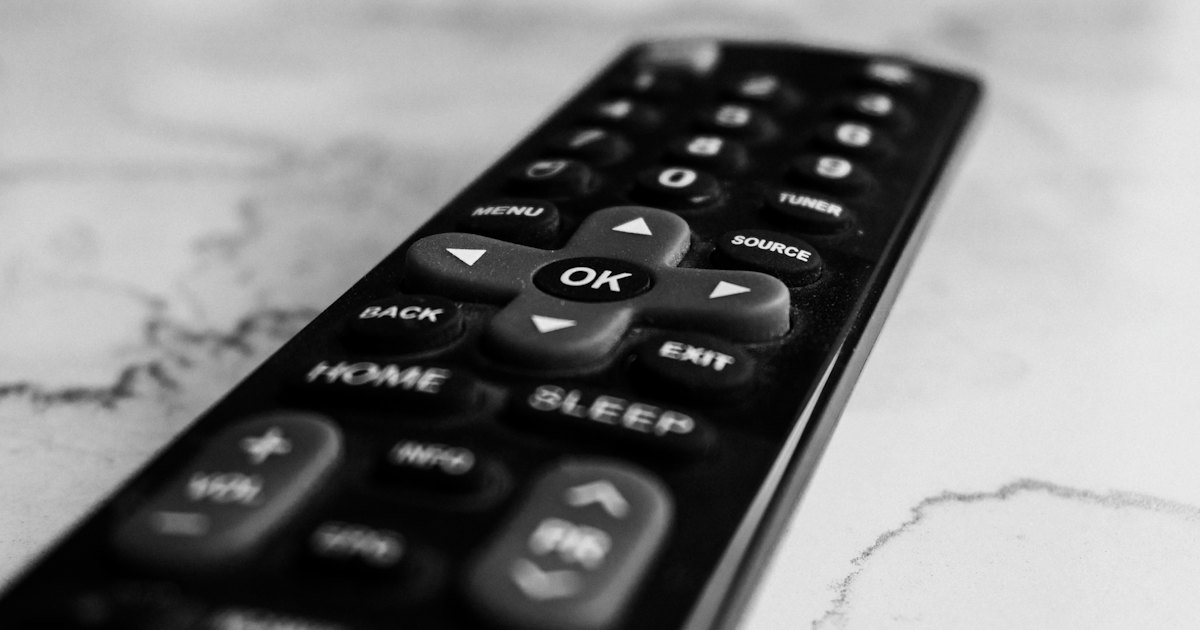
Press the Home button on your Roku remote, then scroll to Settings and press OK. Settings sits on the left rail of newer Roku home screens, or in the menu row on older ones. No remote? Open the same menu from the Roku mobile app or a phone remote over Wi-Fi.
On this page
I keep a TCL 55S455 in the living room. A 43S425 sits in the guest room. Both run Roku OS. Settings is never a secret code — Home comes first, every time. The 43-inch set uses a basic IR clicker, so I have to point it at the sensor. The 55S455 voice remote works from the sofa at an angle. That is the one limit I still hit: a weak IR clicker looks like a missing Settings menu.
The 30-second test: home grid or dead remote?
Spend 30 seconds here before you hunt through menus. One press tells you which method to use.
- Press Home. Channel tiles on screen? You are on the Roku home grid — go to Method 1.
- Still watching Netflix or YouTube? Press Home again. Settings never lives inside an app.
- Remote does nothing? Skip the plastic clicker. Method 2 or Method 4 puts Home on your phone.
- Screen is dark and no button wakes it? Use the set's own power control first (Method 3), then come back to Settings.
Work the methods in order. The physical remote is the fastest path when it still works. Phone backups exist for the days it does not.
Smart TV Remote
Clicker already missing before you reach Settings?
Smart TV Remote puts Home and a D-pad on your iPhone over Wi-Fi — free, no account.

Smart TV Remote
Free · iOS 16+



Method 1: Use the Home button on the Roku remote
This is the path Roku's own settings help starts with: press Home, then select Settings. Same steps on a TCL Roku TV, a Hisense Roku TV, or a Roku player. The software is Roku OS either way.
- 1Wake the TV so the picture is on. Settings will not open on a black, unpowered screen.
- 2Press Home. Wait until the Roku home grid appears — rows of channel tiles, not the app you were in.
- 3Move to Settings. Newer screens put it on the left rail. Older software keeps it in the menu row.
- 4Press OK. Network, System, and picture options are inside that list. Pick the one you need.
Catch: a basic IR clicker must face the TV. A voice remote does not — it works from an angle. If Home does nothing, the menu path is fine. The remote is the broken piece. Roku's support library covers remote pairing if you need that next. For a dead TCL clicker, see TCL remote not working.
Method 2: Use the official Roku mobile app
Lost the clicker, or Home will not register? The official Roku app mirrors the physical remote over Wi-Fi. You still press Home, then Settings. Only the device in your hand changes.
- 1Install the Roku app and sign in with a free Roku account.
- 2Join the same Wi-Fi the TV uses. A guest network or a phone on cellular data will not see the set.
- 3Open the Devices tab and tap your Roku TV in the list.
- 4Open the on-screen remote. Press Home, then Settings, exactly as in Method 1.
Catch: the Roku app only talks to Roku devices. A TCL Google TV will not show up. Pairing detail and the usual "TV not found" fixes sit in the TCL Roku TV remote app guide.
Method 3: Use the buttons on the TV
No phone and no remote? Feel around the set. Many TCL Roku TVs hide a joystick or a single button on the back, the bottom edge, or under the panel. That control can wake the TV. It is a poor Settings tool.
- 1Run a hand along the back and the bottom edge. Look for a joystick or one small button.
- 2Press it to wake the set if the screen is dark.
- 3Try a short press, a nudge, or a hold to see if any menu appears.
- 4Stop if you only get power or volume. This control often never reaches the full Settings tree.
Catch: I treat the panel button as a power switch, not a remote. Once the picture is on, a phone is the reliable way into Settings. Labels and placement differ by TCL model, so do not expect one hidden joystick to match every set.
Smart TV Remote
Done feeling around the back of the TV?
Smart TV Remote finds your TCL on the Wi-Fi you already have and gives you Home, volume, and a D-pad.
Smart TV Remote
Free · iOS 16+
Method 4: Use Smart TV Remote on your iPhone
Smart TV Remote is the free app we make. It talks to a TCL Roku TV over the Wi-Fi you already have — no pairing code, no account. The remote screen includes Home, a D-pad with OK, and a Settings control, so the TV menu is the same one Method 1 opens.
- 1Get Smart TV Remote on an iPhone or iPad running iOS 16.0 or later.
- 2Put the phone on the same Wi-Fi as the TV. The app reaches the set over that network, not infrared.
- 3Open the app and tap your TV in the list it finds on its own.
- 4Tap Home, then open Settings with the D-pad — or use the Settings control on the remote screen.
Catch: the TV must be on and joined to that network. An unplugged set cannot wake from a phone. First-time pairing, including mixed TCL Roku and Google TV homes, is in the TCL TV remote app guide and the walkthrough for connecting a phone as a remote.
Which path should you use?
Pick the row that matches what you still have in your hand. All four open the same Roku Settings menu when they work.
| Method | You need | Opens full Settings? |
|---|---|---|
| 1. Physical remote | Working Roku remote | Yes — Home, then Settings |
| 2. Roku mobile app | Phone, same Wi-Fi, Roku account | Yes — on-screen Home |
| 3. Buttons on the TV | Joystick or button on the set | Often no — power and volume only |
| 4. Smart TV Remote | iPhone or iPad, iOS 16.0+, same Wi-Fi | Yes — Home, D-pad, Settings control |
My pick: use the plastic remote when it still wakes the grid. Keep a phone app as the backup for the IR clicker that dies at 10 p.m. The panel button is only for power. For other ways to drive the set from a phone, see how to control a TCL TV with your phone. Once you are in the menu, common next stops are the best Roku TV picture settings and changing the input on a Roku TV.
Frequently Asked Questions
How do I get to Settings on my Roku TV?
Press Home on your Roku remote, scroll to Settings, and press OK. That is the whole path on every Roku TV, including TCL models. Newer home screens put Settings on the left rail. Older ones keep it in the menu row. Still inside an app? Press Home until the channel tiles appear, then look for Settings.
Where is the Settings button on a Roku remote?
A typical Roku remote has no dedicated Settings key. Home is the button that gets you there. Press Home, then select Settings with the D-pad and OK. Voice remotes and IR clickers share that same path. If Home does nothing, try fresh batteries or a phone remote instead.
How do I open Settings on a Roku TV without the remote?
Use the Roku mobile app or Smart TV Remote on the same Wi-Fi, then press Home and open Settings. Both give you a D-pad and Home, so the TV menu is unchanged. Some TCL Roku TVs hide a joystick on the back or under the bottom edge. That control often handles power and volume; it may not reach the full Settings tree.
Why can't I find Settings on my Roku home screen?
You are probably still inside an app, not on the Roku home grid. Press the Home button until you see the channel tiles. On newer screens, Settings sits at the bottom of the left menu. Look there before you hunt across the rows. A dead remote can also leave you stuck in an app — switch to a phone remote and press Home from there.
How do I get to network Settings on a Roku TV?
Open Settings, then select Network. That page shows the current Wi-Fi name and lets you set up a new connection. The path is Settings › Network on every Roku TV I have used, including the TCL 55S455. Roku's support library documents the same Home → Settings start.
How do I get to Settings on a TCL Roku TV?
Press Home, then select Settings — a TCL Roku TV uses Roku OS, not a separate TCL settings app. Network, System, and picture options all live under that menu. The plastic remote, the Roku mobile app, and Smart TV Remote all open the same screen. The clicker brand on the table does not change the path.