Guide
TCL TV Black Screen but Power Light On? Fix It Now
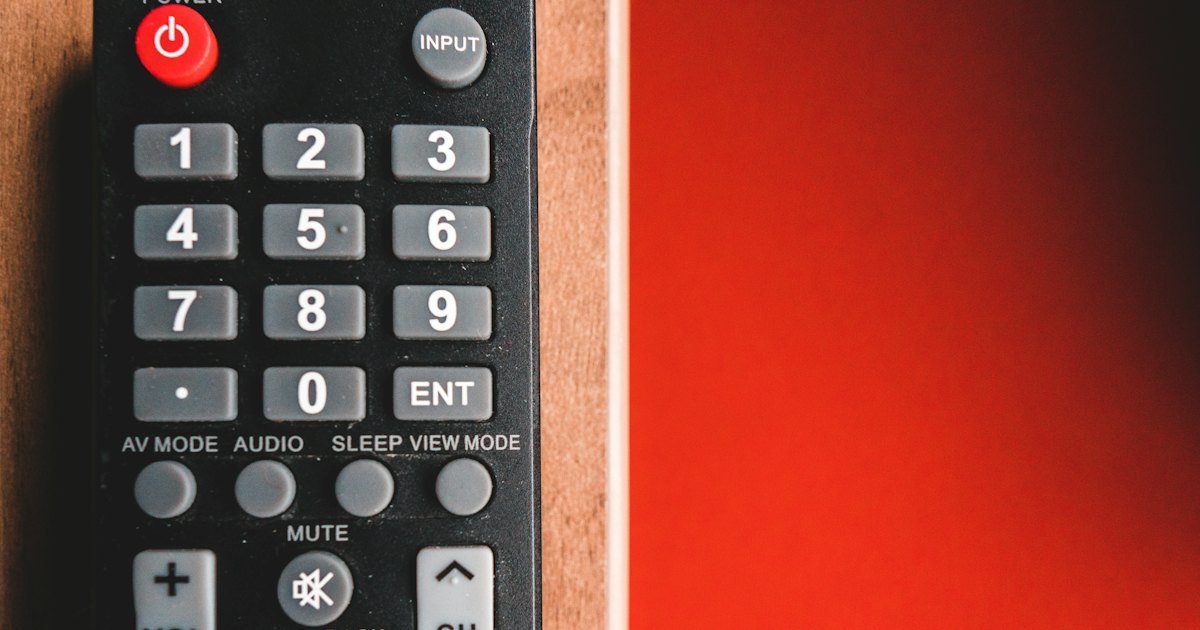
A TCL TV with a black screen but the power light on is receiving power, so the fault sits in the display path, not the outlet. Check the input and HDMI first, then power-cycle the set for 60 seconds. If the screen is still black, a flashlight test at an angle checks for a failed backlight.
On this page
A lit power light rules out the scariest cause right away: the outlet, cord, and power board are doing their job. What's left is narrower — the wrong input, a stuck app, a loose HDMI cable, or a backlight that stopped lighting a panel that's still technically on. On practice, most of these clear with the input and power-cycle checks below before you ever reach for a flashlight.
Below are five fixes in the order that clears the most false alarms first. TCL's own no-picture troubleshooting follows the same order: source and connection checks before anything destructive. Once the picture is back, a dead plastic remote is a separate, easier problem — see TCL remote not working or how to connect your phone to a TCL TV as a remote.
The 30-second test
Run these three checks before anything else. They split a wrong source from a real display fault in under half a minute.
- 1Press Home two or three times, with a pause between presses. Any menu or tile confirms the panel still works.
- 2Press Volume Up and listen. Audio changing means the set is awake, not stuck in standby.
- 3Switch inputs with the Input or Source button. A black screen on one HDMI port but not others points at that cable or device.
Smart TV Remote
Remote dead while you try Home and Input?
Smart TV Remote puts the D-pad on your phone over Wi-Fi — free, no account.

Smart TV Remote
Free · iOS 16+



Fix 1: Check the input and HDMI connection
TCL's own no-picture troubleshooting checks the source first, before anything destructive. Start the same way: work through the input before touching settings or cables elsewhere.
- 1Cycle through every input. Press Input or Source and step through HDMI 1, HDMI 2, and Live TV one at a time. Give each a few seconds to show a signal.
- 2Wake the connected device. A game console, streaming stick, or cable box can sit in sleep mode. Power it on with its own remote and confirm it's on the port you just selected.
- 3Reseat both ends of the HDMI cable. Unplug the cable from the TV and the device, push both ends firmly back in, then try a different port if one is available.
- 4Swap the cable if you have a spare. A damaged HDMI cable can drop video while audio or nothing at all gets through. Remove any splitter or switch box while you test.
Catch: if the picture comes back on built-in apps but not on one HDMI port, the fault is the cable or the connected device, not the TV. Black on every input and every app moves you to Fix 2.
Fix 2: Power-cycle the TV for 60 seconds
A soft freeze can leave the power light lit and the board running while the picture path locks up. This is the fix most people cut short by unplugging for five seconds instead of the full minute.
- 1Unplug the TV from the wall. Pull the cord from the outlet itself, not just the back of the set. Leave it unplugged for a full 60 seconds so the power board can fully discharge.
- 2Hold the TV's power button while it's unplugged. With the cord still out, press and hold the physical power button on the TV for 10 to 15 seconds. This clears charge a quick unplug leaves behind.
- 3Plug straight into the wall outlet. Skip any power strip or surge protector for this test. Reconnect directly to the wall socket.
- 4Press power once and wait. Tap the power button a single time and give the set up to 30 seconds. Home or any menu appearing means the drain cleared a soft freeze.
Catch: the drain fixes a frozen set, not a hardware fault. If the picture returns and then goes black again within a day or two, check for a software update once you can reach Settings. Menu paths differ between Roku, Google TV, and Fire TV.
Smart TV Remote
Need to retest the inputs while the screen is still dark?
Smart TV Remote finds your TCL on Wi-Fi and mirrors the plastic remote — free.
Smart TV Remote
Free · iOS 16+
Fix 3: Run the flashlight backlight test
If the input is right and a full power-cycle didn't help, check whether the panel itself still draws an image the backlight can't light. TCL lists a failed backlight as a cause of power-but-no-video on its own support pages.
- 1Darken the room. Turn off overhead lights. Stand close enough to see the panel's surface clearly.
- 2Shine a flashlight at the screen, held at an angle. Hold the light a few inches from the glass and sweep it slowly. Don't press it flat against the screen.
- 3Look for any faint image. A barely visible menu, logo, or moving shape means the panel is alive and the backlight has failed. No image at all under the light points to a deeper display fault, still a service issue rather than a settings fix.
Catch: this test identifies the fault, not the repair. It won't name the exact failed part. Write down your model and serial number before you contact TCL Support, since a factory reset cannot restore a dead backlight.
Fix 4: Rule out a Roku or Google TV boot freeze
TCL Roku TVs and TCL Google TV sets add one more cause. A software update can stall partway through, leaving the set stuck on the opening logo instead of reaching Home.
- 1Watch what the screen shows during the drain. Run the Fix 2 power-cycle again and watch closely. A logo that appears, freezes, then stays frozen is a stuck boot, not a dark panel.
- 2Give it extra time after the drain. Some sets need several minutes to finish an interrupted update after power returns. Leave it plugged in rather than cycling power again right away.
- 3Check Roku's own boot-loop guidance. If the TCL Roku TV keeps looping the same logo, Roku documents the recovery steps directly.
Full steps live on Roku's support site. Setting up a TCL Google TV from scratch once it boots? See the TCL Google TV remote app guide, or the Roku TV remote app guide for a Roku set.
Fix 5: Navigate and retest from your phone
A dead or missing plastic remote makes every fix above harder to try. Smart TV Remote won't repair a backlight or clear a stuck update on its own. It does let you press Home, change inputs, and adjust volume and mute over Wi-Fi while you work through the fixes above.
- 1Download Smart TV Remote. Install it free on an iPhone or iPad running iOS 16.0 or later.
- 2Join the TV's Wi-Fi network. The phone and the TCL need to share the same home network. A guest network usually blocks this.
- 3Open the app and pair with your TV. Follow the quick setup flow, then select your TCL from the list.
- 4Press Home and change the input. Use the on-screen D-pad, OK, back, home, volume, and mute to redo Fix 1 and Fix 2 without the plastic remote.
Catch: the app needs the TV joined to Wi-Fi already, so it can't help if the set never got that far during setup. If the remote is the only thing that's broken, the full checklist is in TCL remote not working.
Which fix matches your symptom
Match what's on screen to the fix most likely to clear it, so you don't work through all five in order every time.
| What you see | Likely cause | Start with |
|---|---|---|
| Home or a menu appears somewhere | Wrong input or app | Fix 1: input and HDMI |
| Black on one HDMI port only | Cable, port, or that device | Fix 1: reseat HDMI |
| Light on, no menu after retry | Soft freeze | Fix 2: 60-second power-cycle |
| Faint image under a flashlight | Backlight failure | Fix 3 → TCL Support |
| Stuck on the TCL or Roku logo | Interrupted software update | Fix 4: Roku/Google TV boot freeze |
Honest order: input and HDMI first, then the 60-second drain, then the flashlight, then the Roku- or Google-TV-specific boot check. Phone control is a tool for working through these steps, not a repair for a failed part.
Frequently Asked Questions
Why is my TCL TV screen black but the power light is on?
A lit power light means the TV has power — the fault sits in the display path, not the outlet. Common causes are a wrong input, a loose HDMI cable, a frozen app, or a failed backlight that still draws audio. Check the input first, then power-cycle the set for 60 seconds. If the screen stays black, run a flashlight test for the backlight.
Where is the power button on a TCL TV?
TCL's own support site (support.tcl.com) describes a multi-function button underneath the TV, facing downward, usually centered but sometimes slightly off to one side depending on the series. Run a hand along the bottom edge if you can't see it, and check your model's Quick Start Guide if it's still not obvious.
Where is the power button on a TCL Roku TV?
TCL's support site doesn't publish one fixed spot for Roku models — its own power-troubleshooting article (support.tcl.com) just says to use "the physical Power button on the TV itself." On other TCL sets, TCL documents that button as underneath the panel, facing downward. If you can't find it by feel along the bottom edge, check the Quick Start Guide that shipped with your exact model.
Why is my TCL Roku TV screen black?
The same three causes apply as on any TCL model: a wrong input or HDMI fault, a soft freeze that a power-cycle clears, or a failed backlight. Roku TVs add one more: a boot update that stalls on the TCL or Roku logo and never reaches the home screen. Unplug for 60 seconds first in every case.
How do I fix a TCL Roku TV black screen?
Check the input and reseat HDMI first — TCL's own no-picture troubleshooting (support.tcl.com) starts there too, before anything else. If that doesn't help, unplug the TV for 60 seconds, hold its power button 10 to 15 seconds, then plug it straight into the wall. Still black? A flashlight held at an angle checks whether the backlight has failed.
Why won't my TCL Roku TV turn on?
If the power light is on but the screen stays black, the TV is on — this is a display fault, not a true power failure. Try Home on the remote, then power-cycle for 60 seconds. A set stuck on the TCL or Roku logo during that drain usually means an interrupted software update rather than a dead board.